
1. Before you start
Export a maintained Entity summary for audit or management evidence.
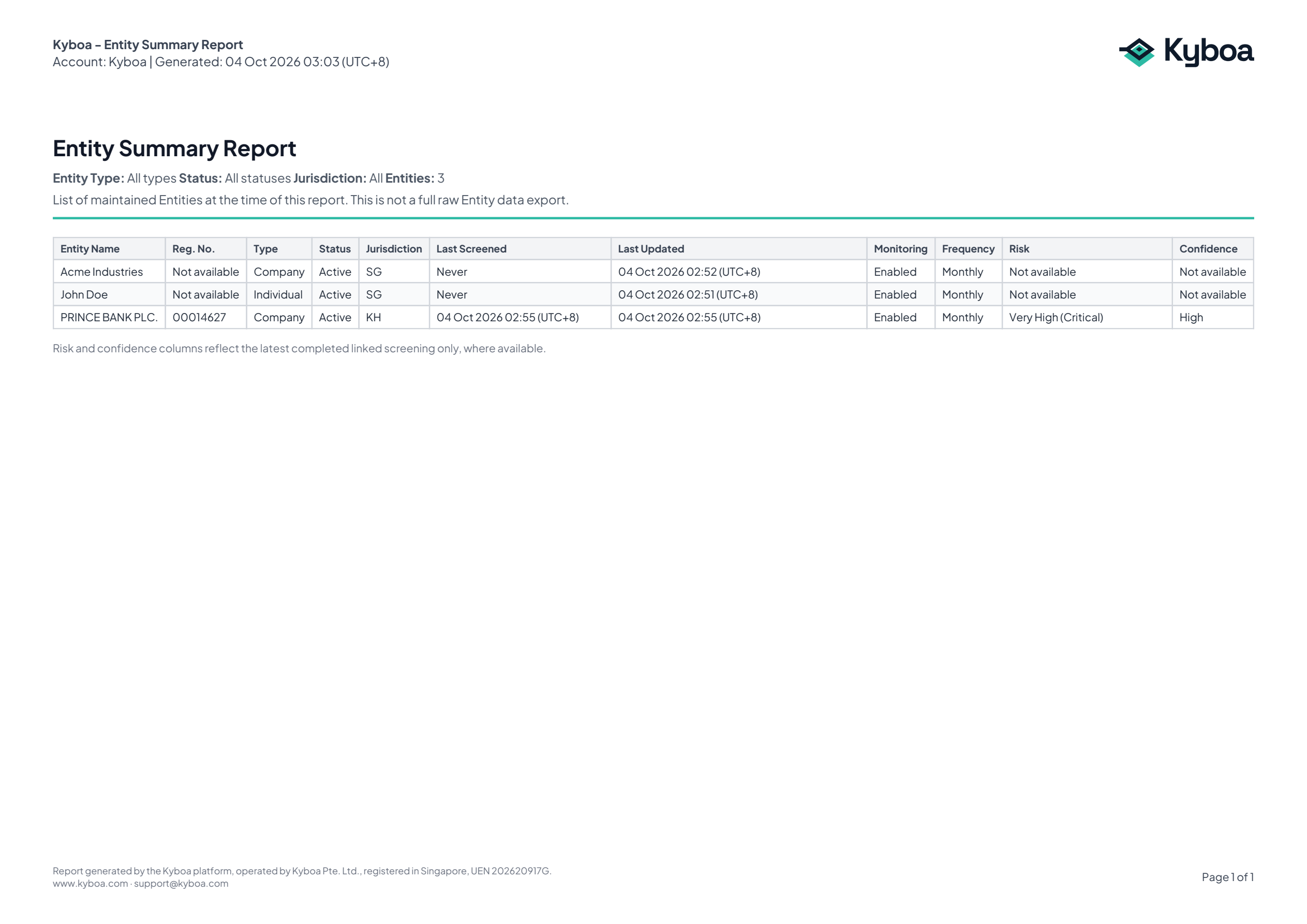
The Entity export is a summary register of maintained clients, including identity, lifecycle, monitoring and latest-screening information where available. It is not a full raw data export.
For evidence of all data held on a particular client, use View Entity → Export PDF; see Entity PDF export.
John Doe, Acme Industries and PRINCE BANK PLC.
Watch the workflow
The video is silent with captions. Any processing waits are shortened.
 Watch the walkthrough
2. Choose filters and preview
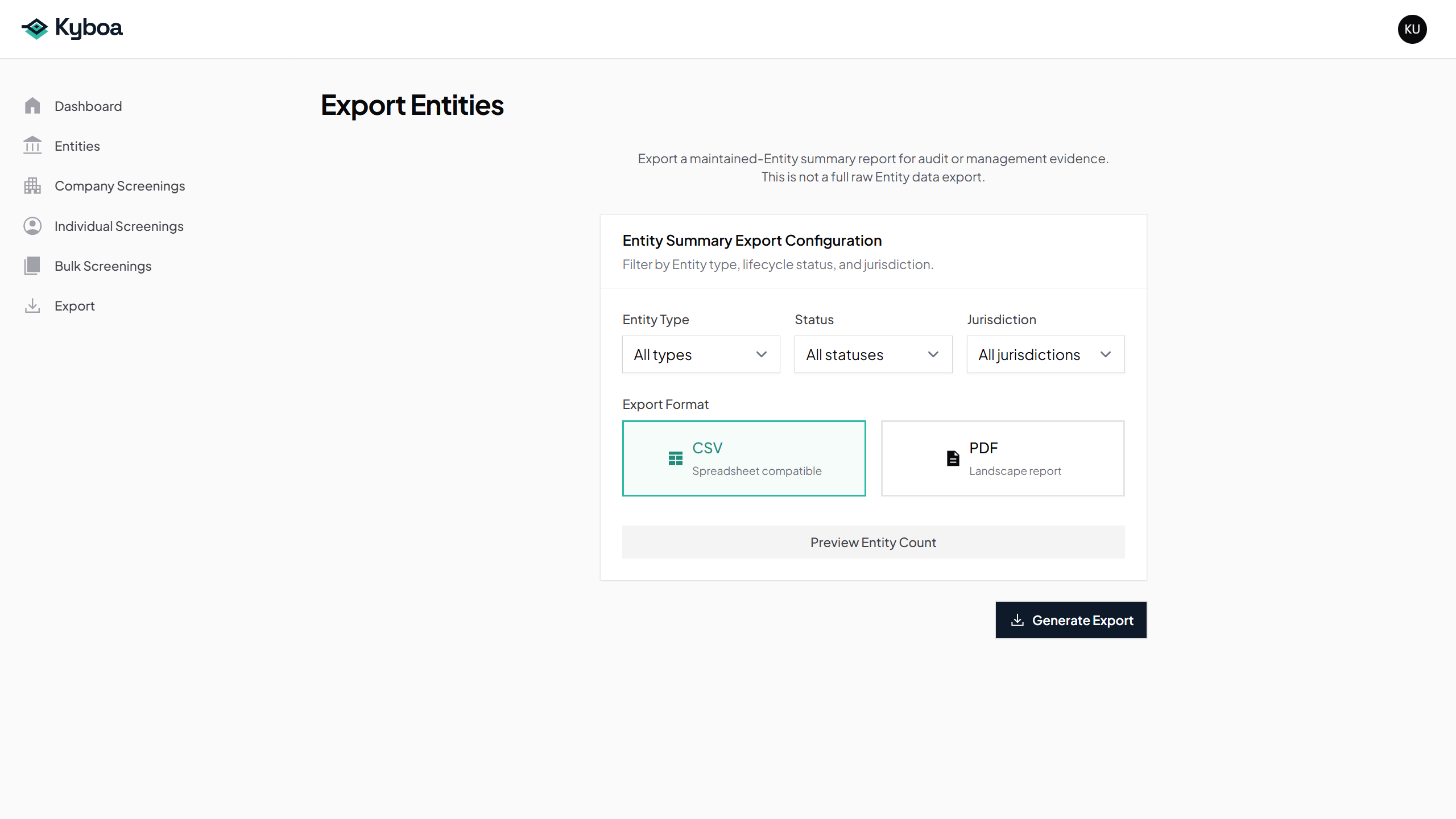
- Open Export and choose Entities.
- Choose Entity Type, Status and Jurisdiction, or keep the all-records options used in the example.
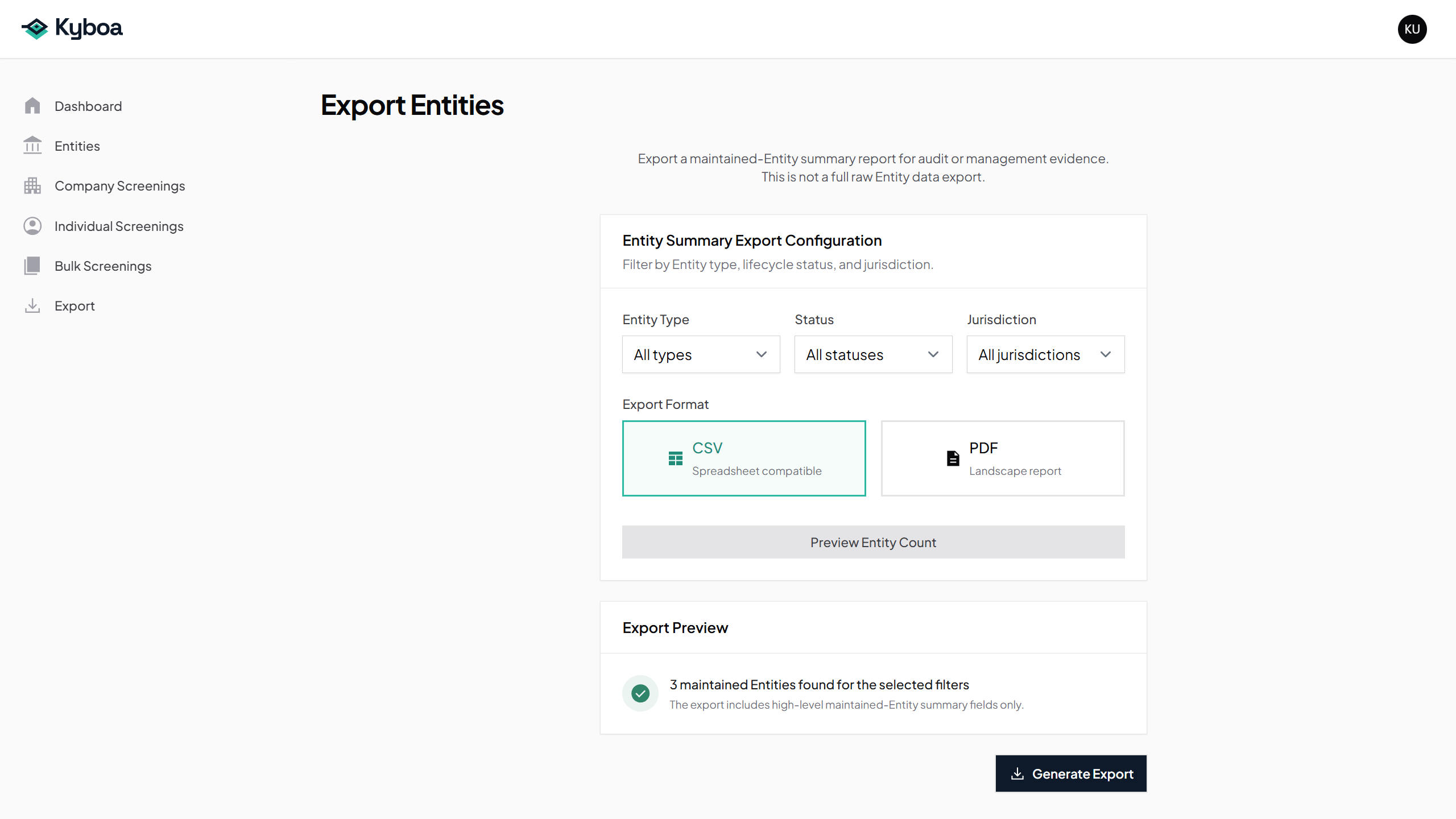
- Choose Preview Entity Count and check how many records match.
3. Download CSV
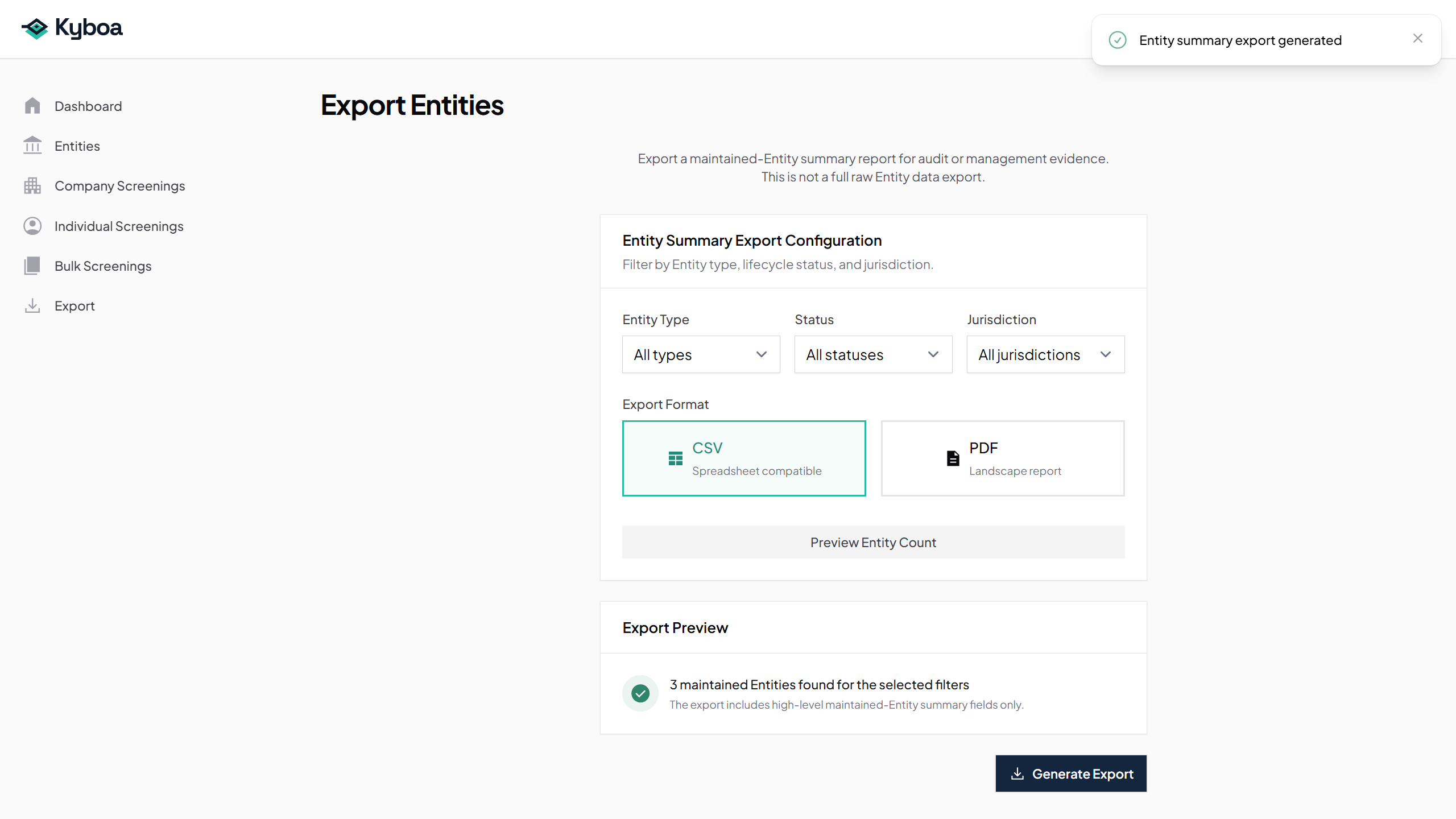
- Select CSV.
- Choose Generate Export.
- Open the CSV and check the selected clients and summary columns.
Open the actual Entity summary CSV example.
4. Download PDF
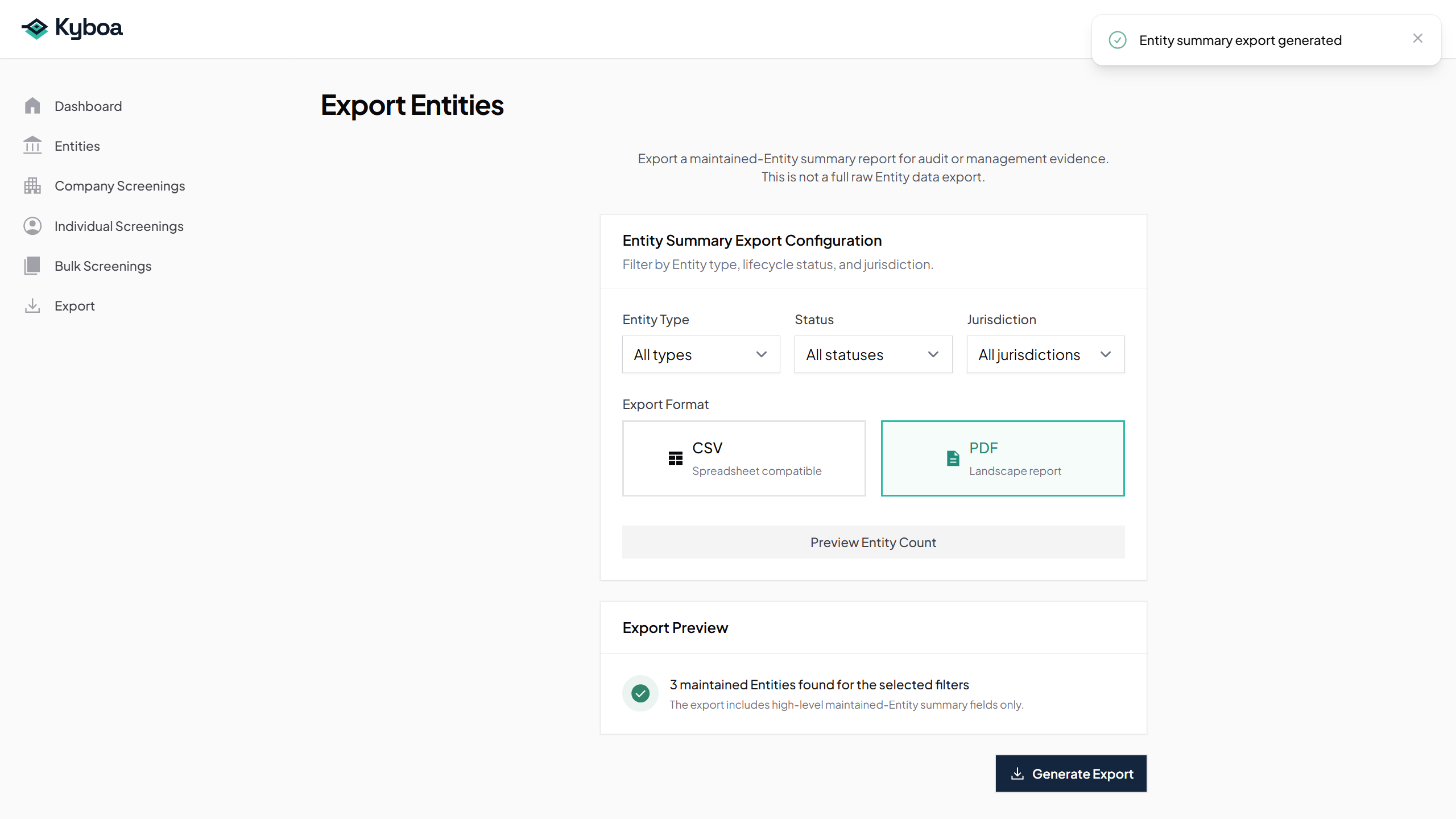
- Select PDF.
- Choose Generate Export.
- Open the landscape PDF and check the filters, row count and client summaries.
Open the actual Entity summary PDF example.
5. If records are missing
Review the type, lifecycle status and jurisdiction filters and preview again. The export reflects the maintained Entity data at download time; a blank latest-screening field can mean no screening has yet been run for that Entity.
6. Check completion
- The filters match the intended client population.
- The preview count is correct.
- The downloaded CSV or PDF opens and includes the expected Entities.
- You have used View Entity → Export PDF separately if a full client record is needed.