
1. Before you start
Create a maintained company client record from the details you hold.
Use an Entity to maintain the data you hold on a client and enable repeat screening or monitoring. Have the company name and jurisdiction ready; add other details only when known.
This example uses fictional documentation data. Creating an Entity saves the client record; it does not immediately run a screening.
Acme Industries · Fictional example
Watch the workflow
The video is silent with captions. Any processing waits are shortened.
 Watch the walkthrough
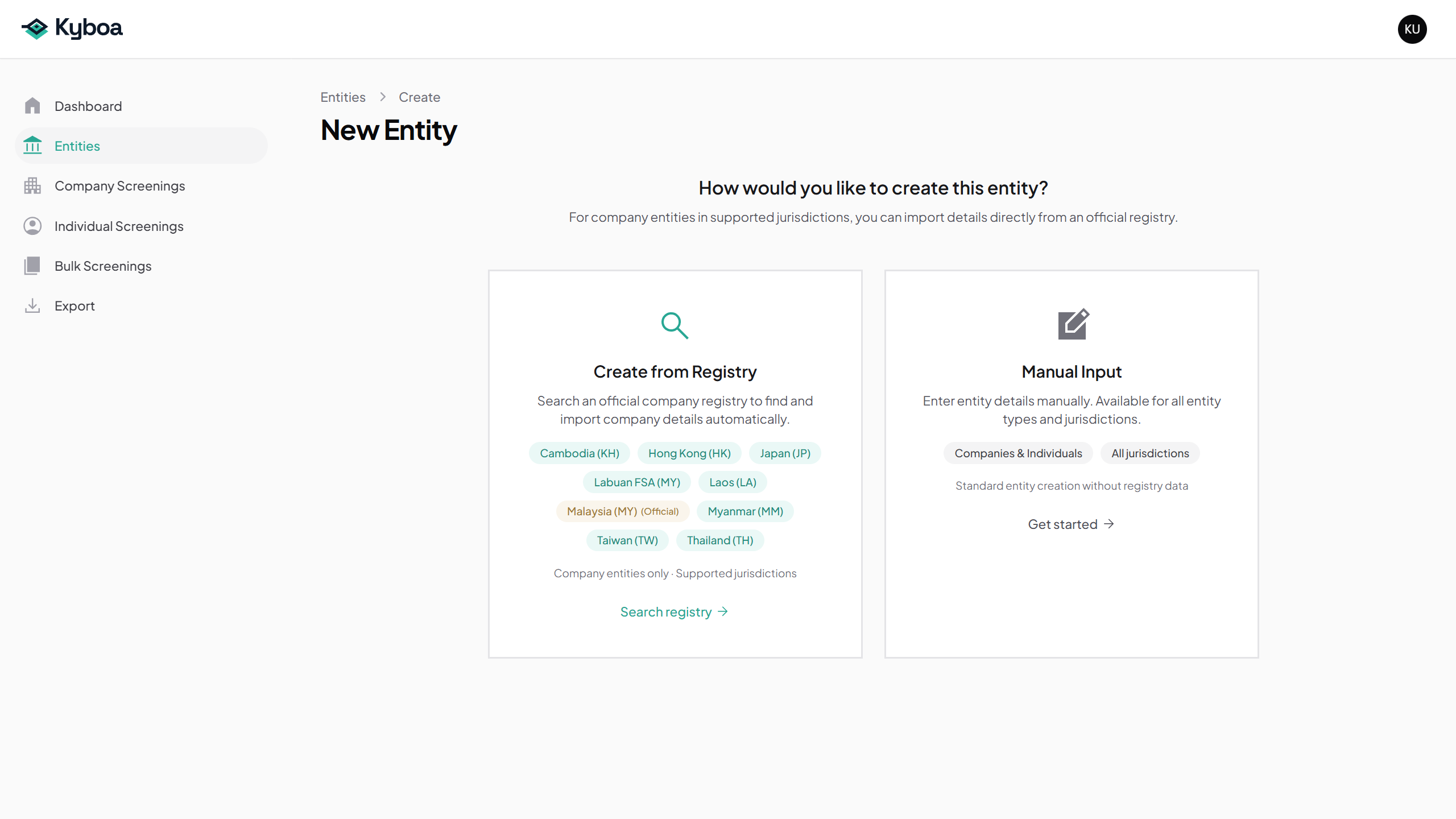
2. Choose Manual Input and enter the identity
- Open Entities and choose New Entity.
- Choose Manual Input.
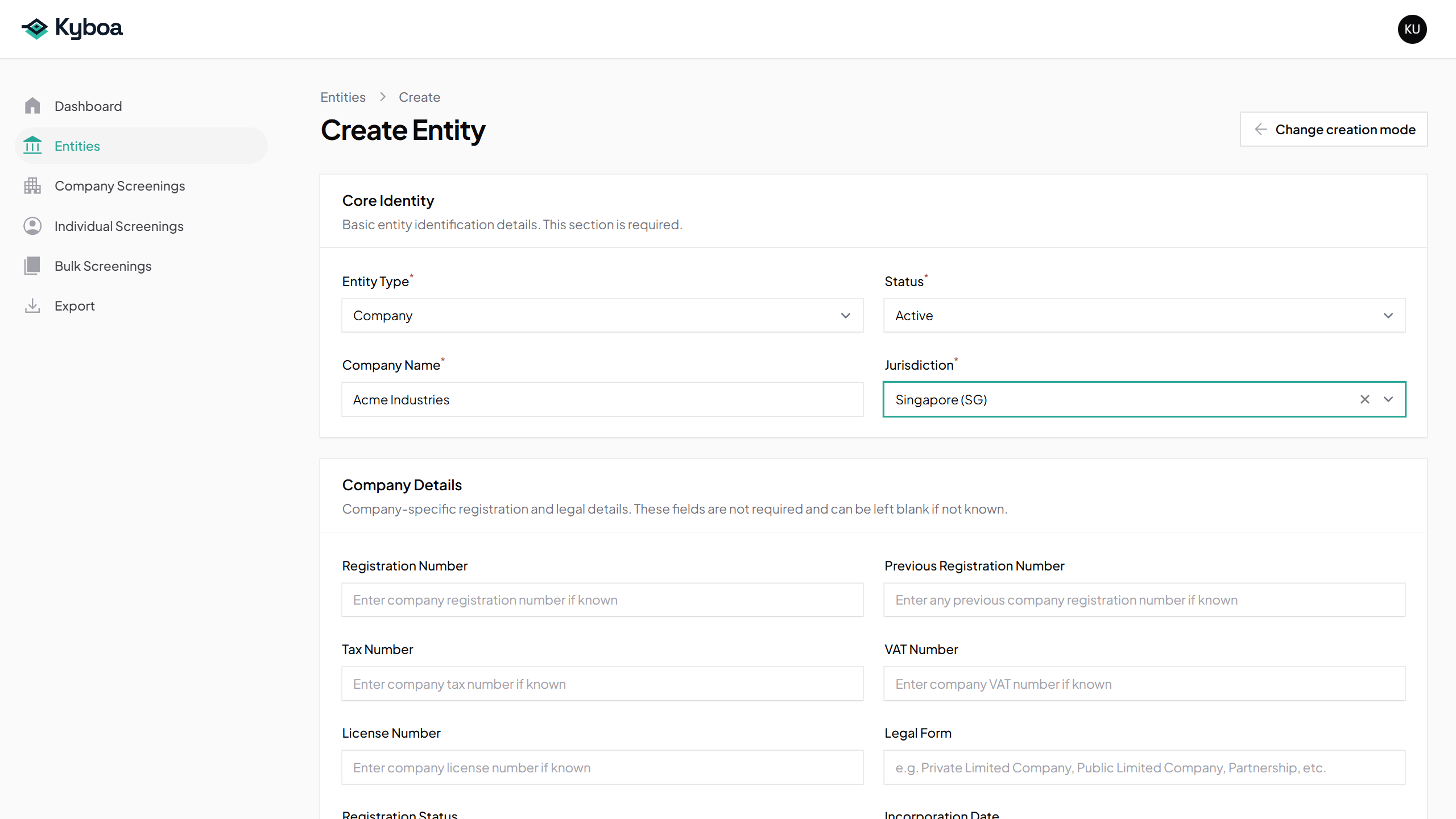
- Set Entity Type to Company and leave Status as Active for this example.
- Enter Acme Industries in Company Name.
- Choose Singapore (SG) in Jurisdiction.
3. Add the details you hold
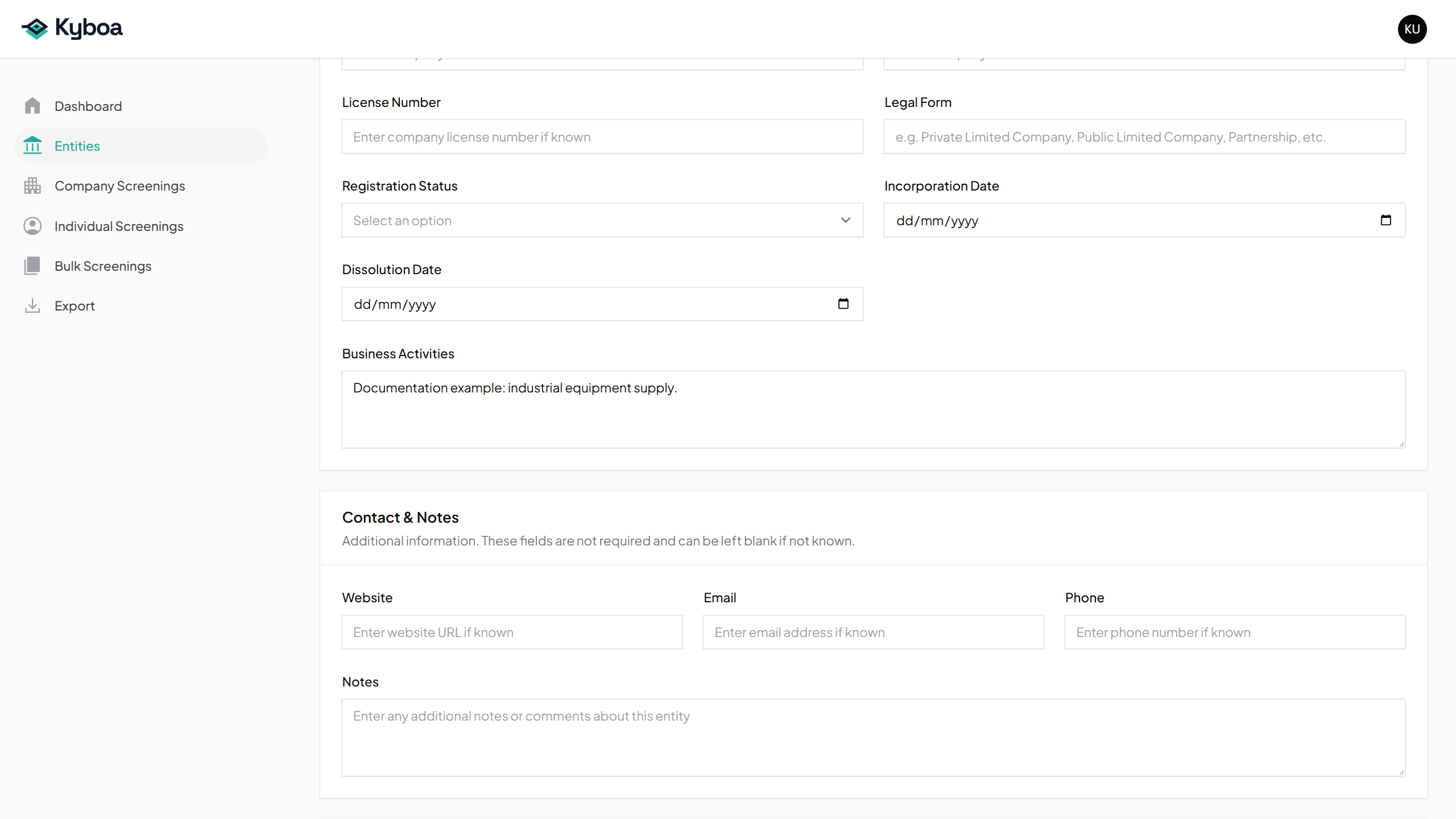
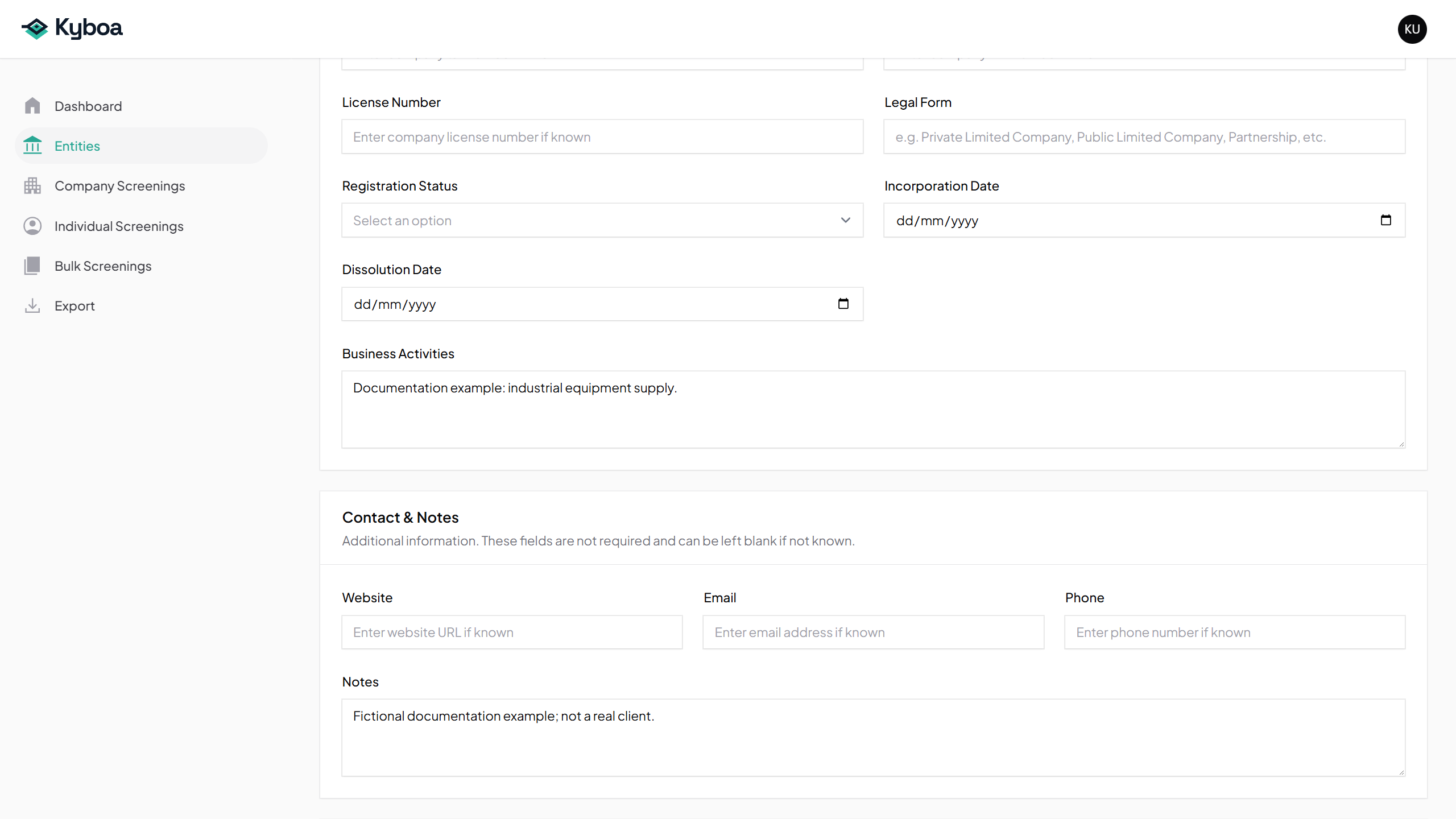
The Company Details section contains optional information. Add registration identifiers, legal form, dates and business activities as available.
Use Contact & Notes for supporting information. The lower sections hold additional names, addresses, associated people and corporate shareholders. Keep the record accurate and leave unknown fields blank.
4. Set Monthly monitoring
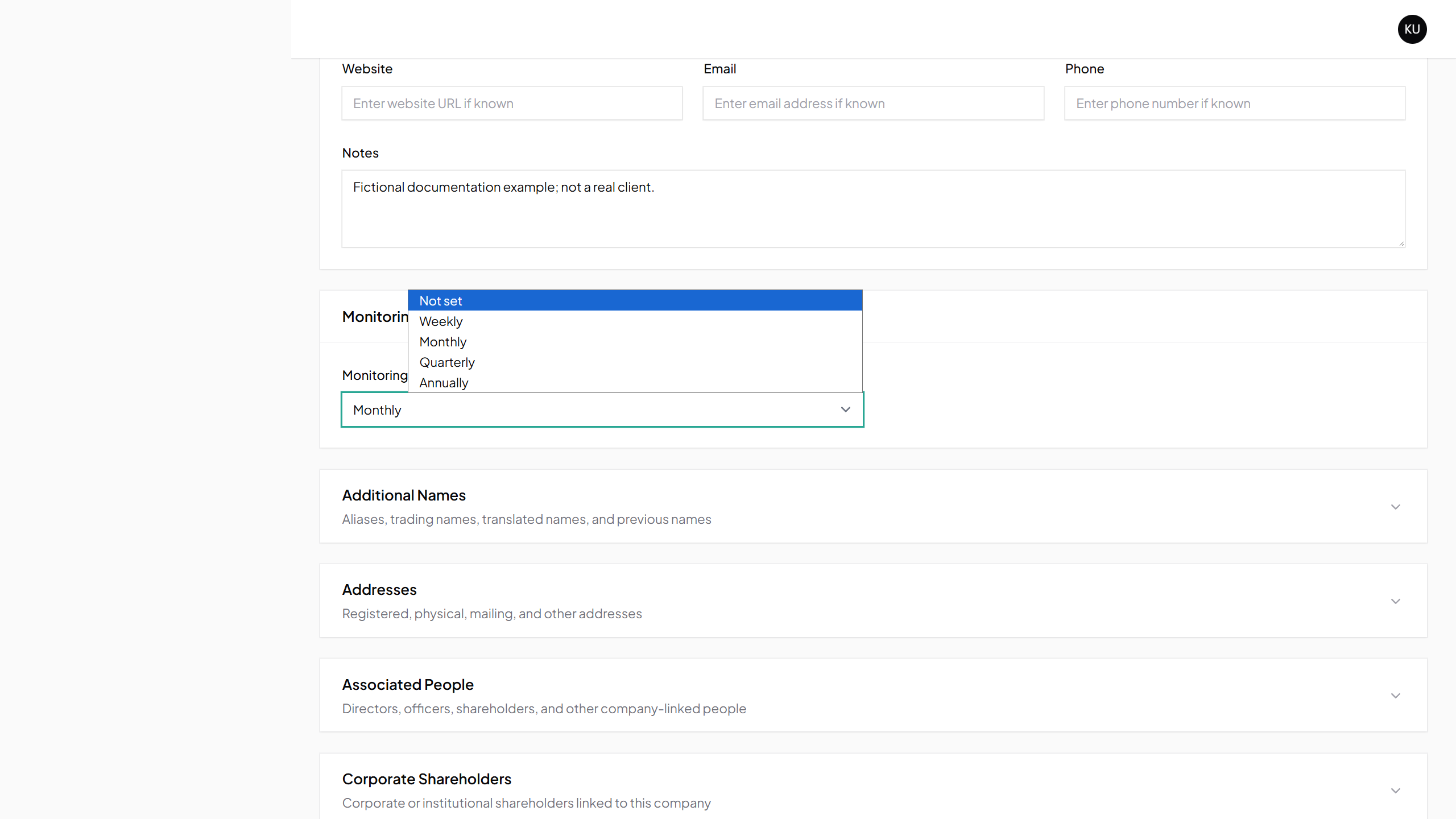
- Find Monitoring.
- Set Monitoring Frequency to Monthly. You can also choose Quarterly or Annually.
- Choose Create to save the Entity and its frequency.
Monitoring schedules repeat screenings. It is separate from running an immediate screening with Run Screening.
5. View or edit the saved Entity
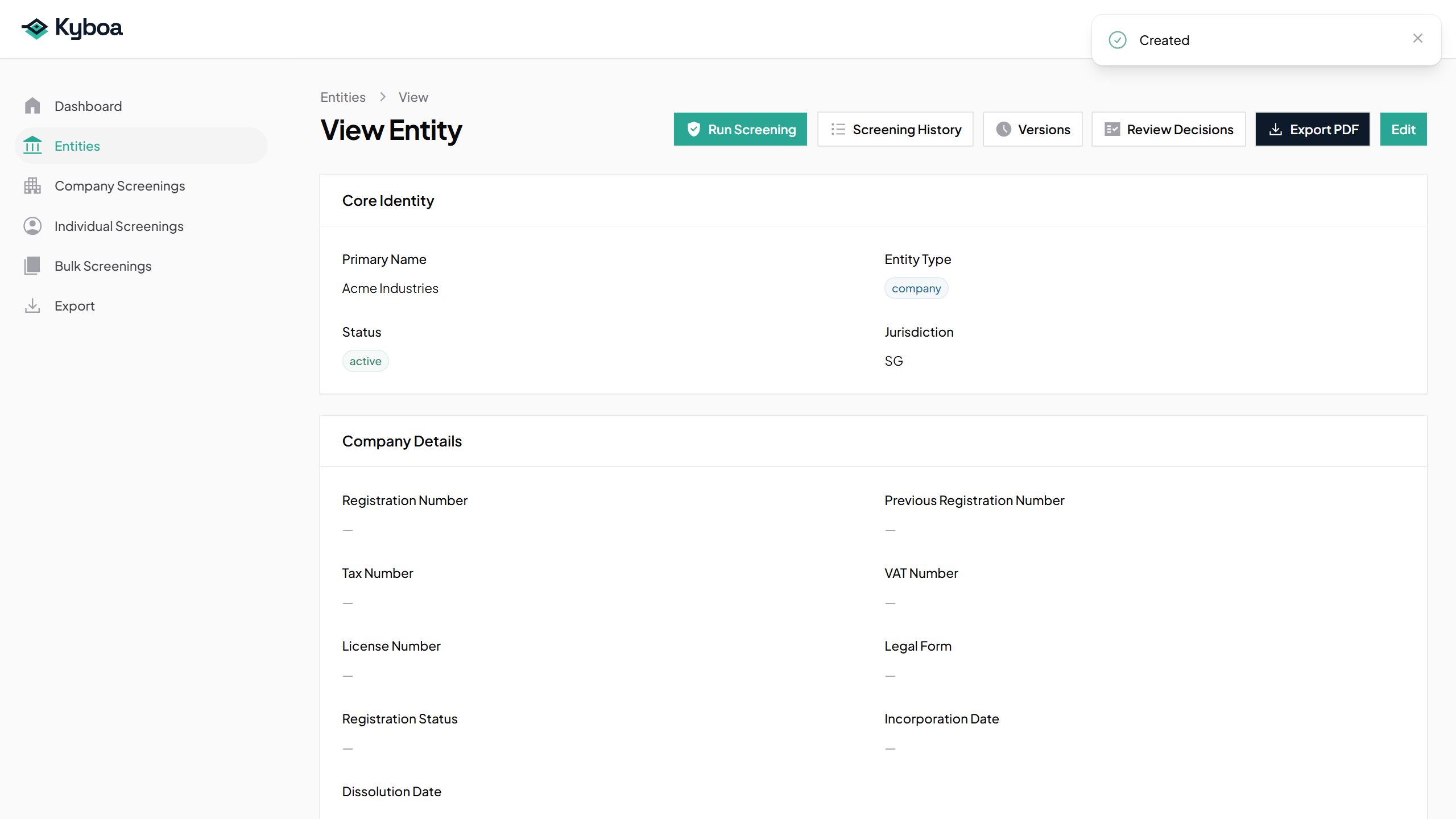
- Review the saved identity and details on View Entity.
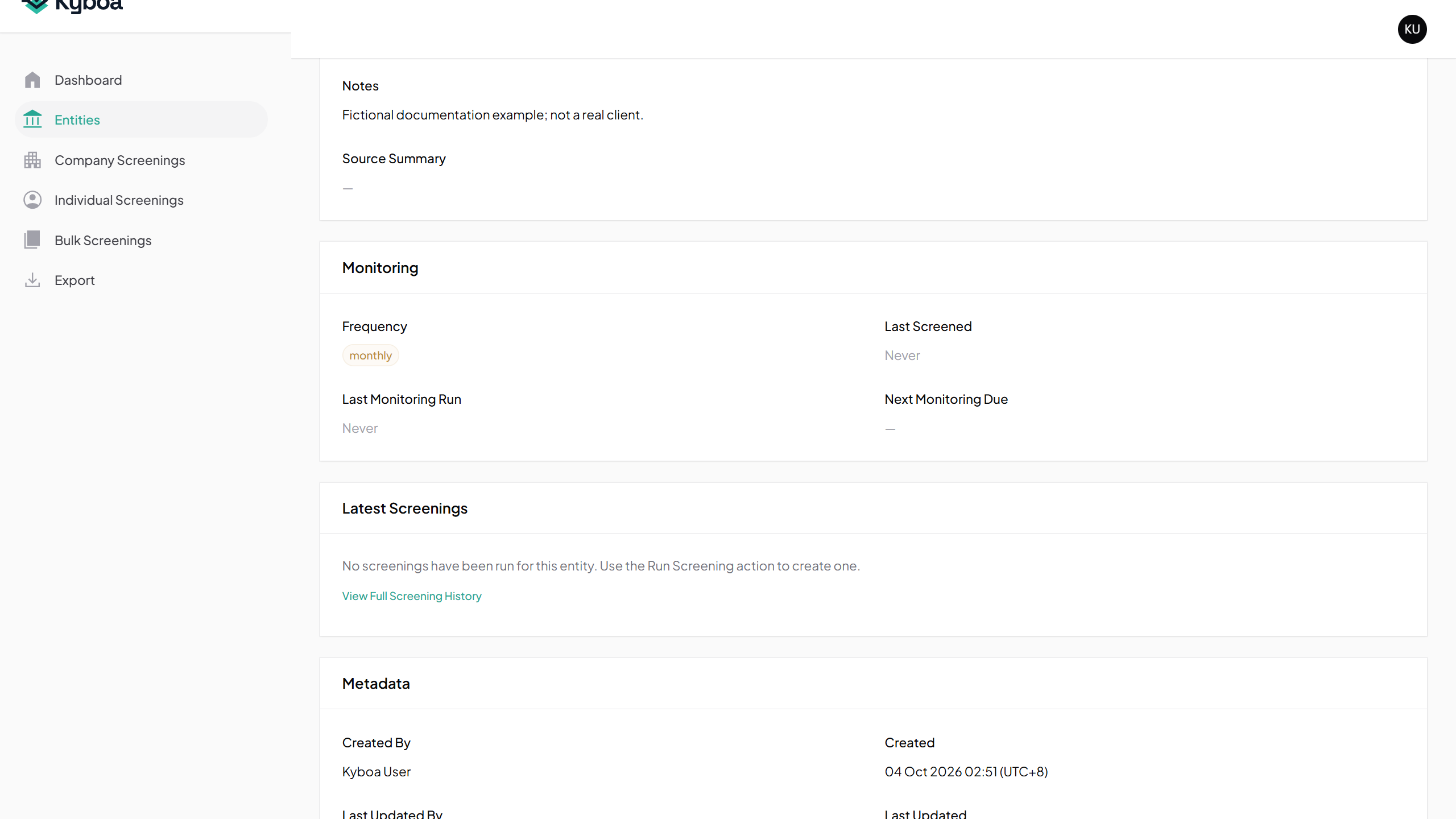
- Check the Monitoring section for Monthly. The next due date may initially be blank.
- To change details or frequency later, choose Edit, update the fields and choose Save changes.
See Use Entity Functions for Run Screening, Screening History, Versions, PDF export and Review Decisions.
6. Common questions
Complete the required Entity type, name and country or jurisdiction. Leave optional information blank when it is unknown.
If Kyboa finds an existing Entity, open and check that record before creating another. If a save fails, read the validation messages and correct the indicated fields.
If monitoring is not set, choose Edit and save a frequency. Keep an Entity active when it should remain eligible for scheduled monitoring.
7. Check completion
- The Entity type, name and country or jurisdiction are correct.
- Known details are saved and unknown details remain blank.
- Monthly monitoring appears on the saved Entity.
- You can reopen the Entity from the Entities list and edit it.