
1. Before you start
Use the registers and Entity history to find previous work.
Have part of the Entity or subject name ready. Entities are maintained client records; Company Screenings and Individual Screenings are records of screening runs. A client may have more than one screening.
Prince Bank, Azure Shipping and Halimah binti Hussein
Watch the workflow
The video is silent with captions. Any processing waits are shortened.
 Watch the walkthrough
2. Find a maintained Entity
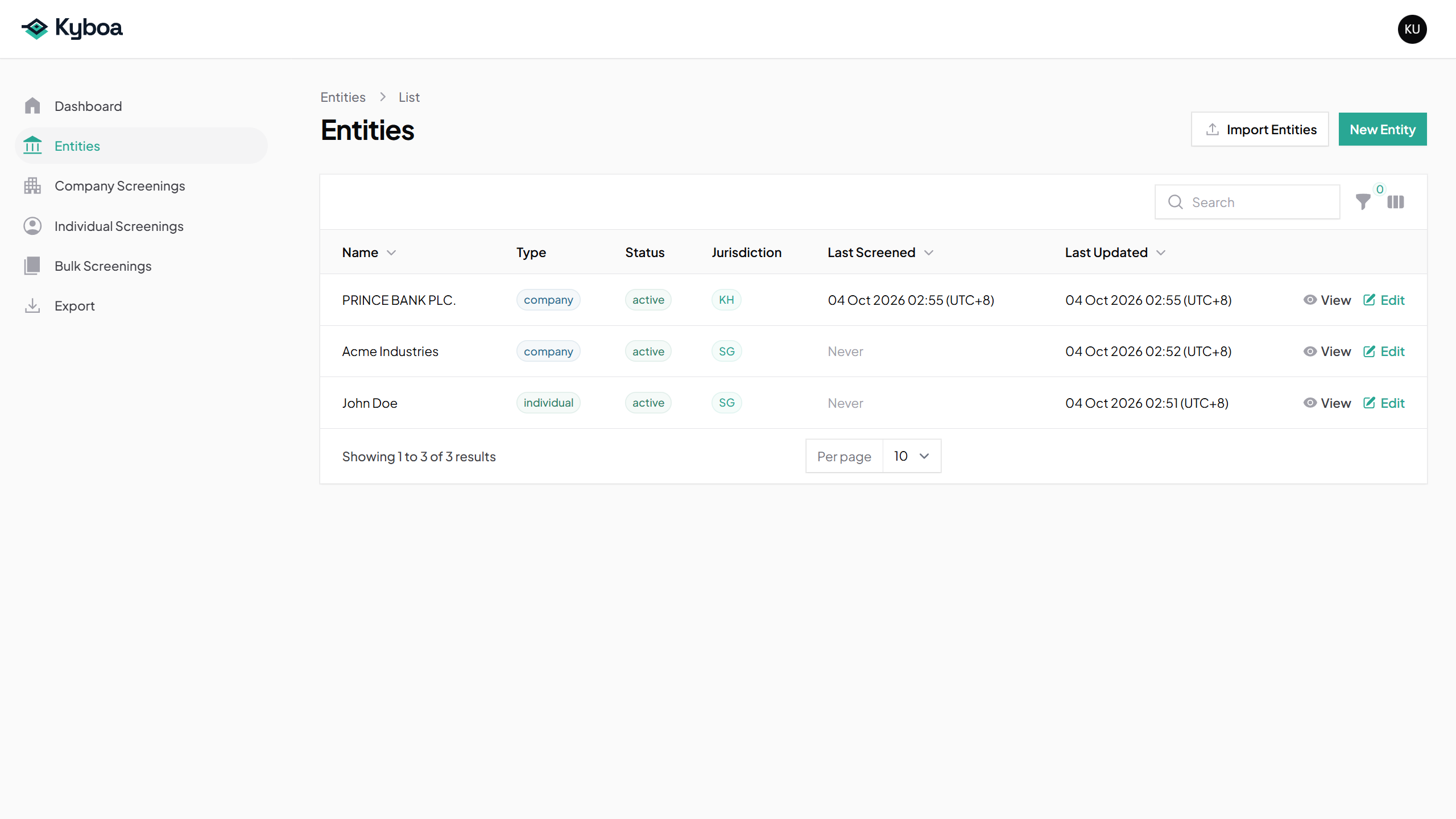
- Open Entities.
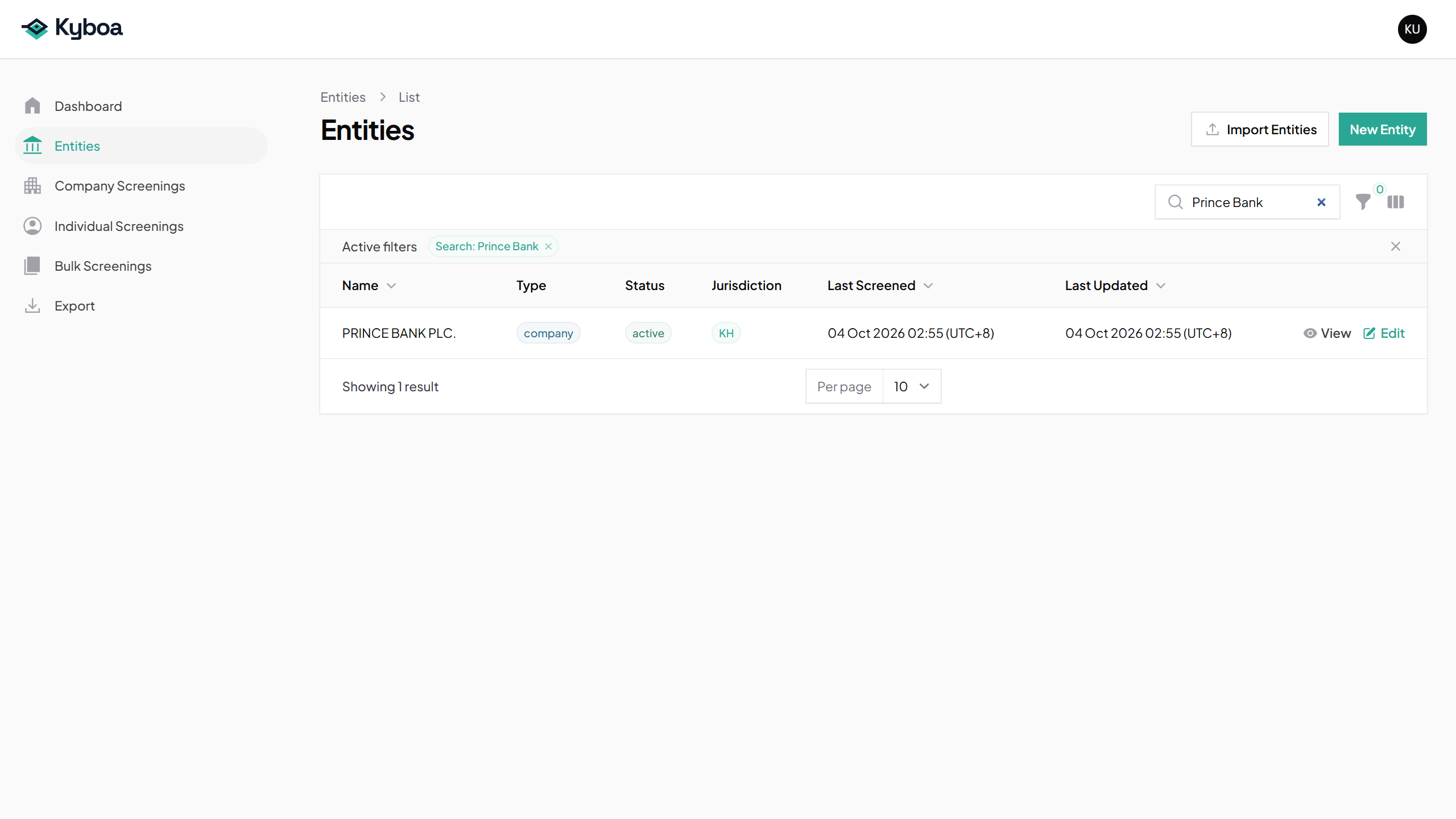
- Use Search to enter part of the name, such as Prince Bank.
- Check the Entity type and jurisdiction, then choose View.
- Use Filter to narrow Entities by type or lifecycle status when needed.
3. View the Entity’s screening history
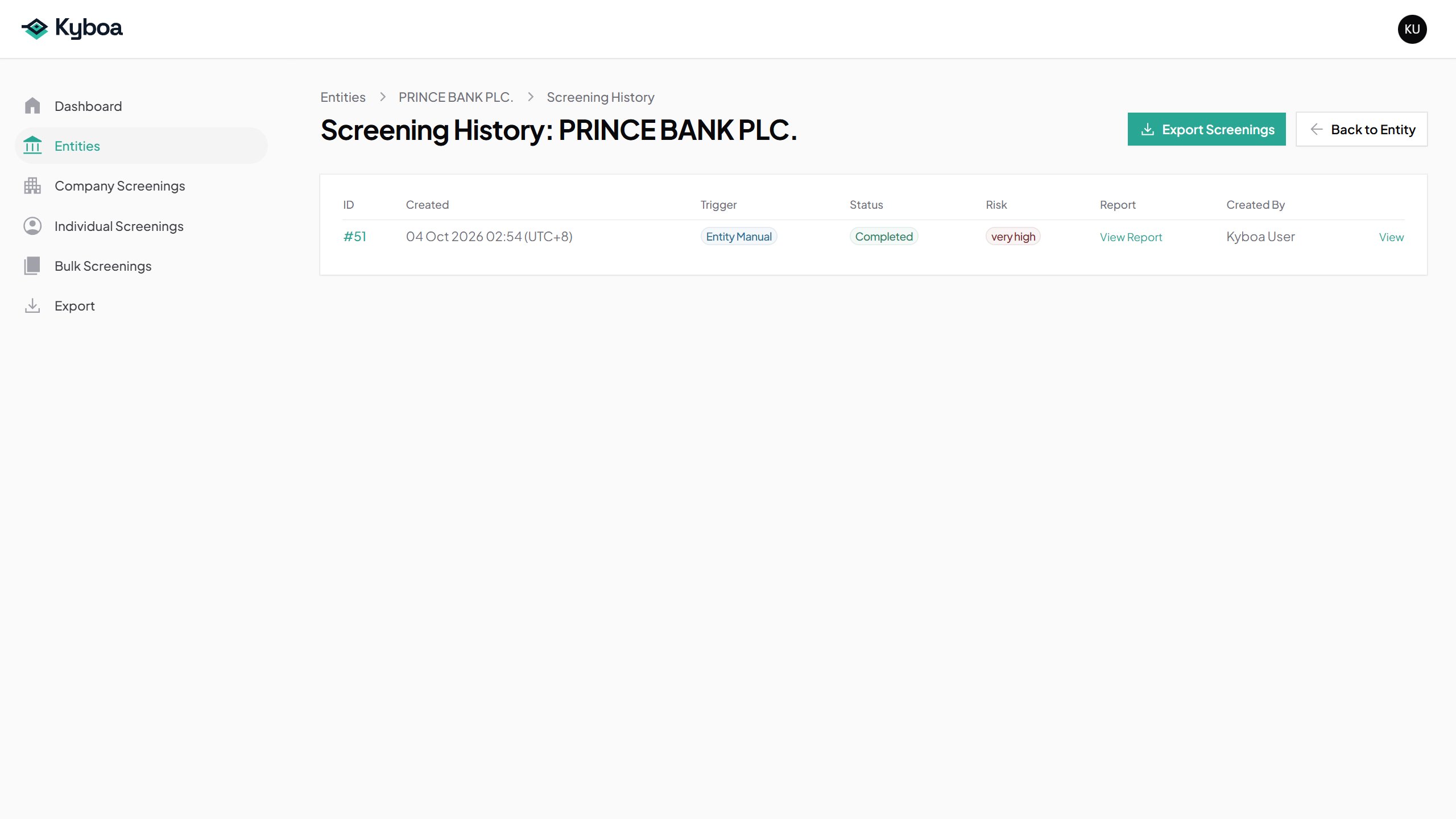
- On View Entity, choose Screening History.
- Find a previous screening by date or reference.
- Use its screening or report links to reopen the saved output.
See Use Entity Functions to run an immediate screening from the Entity.
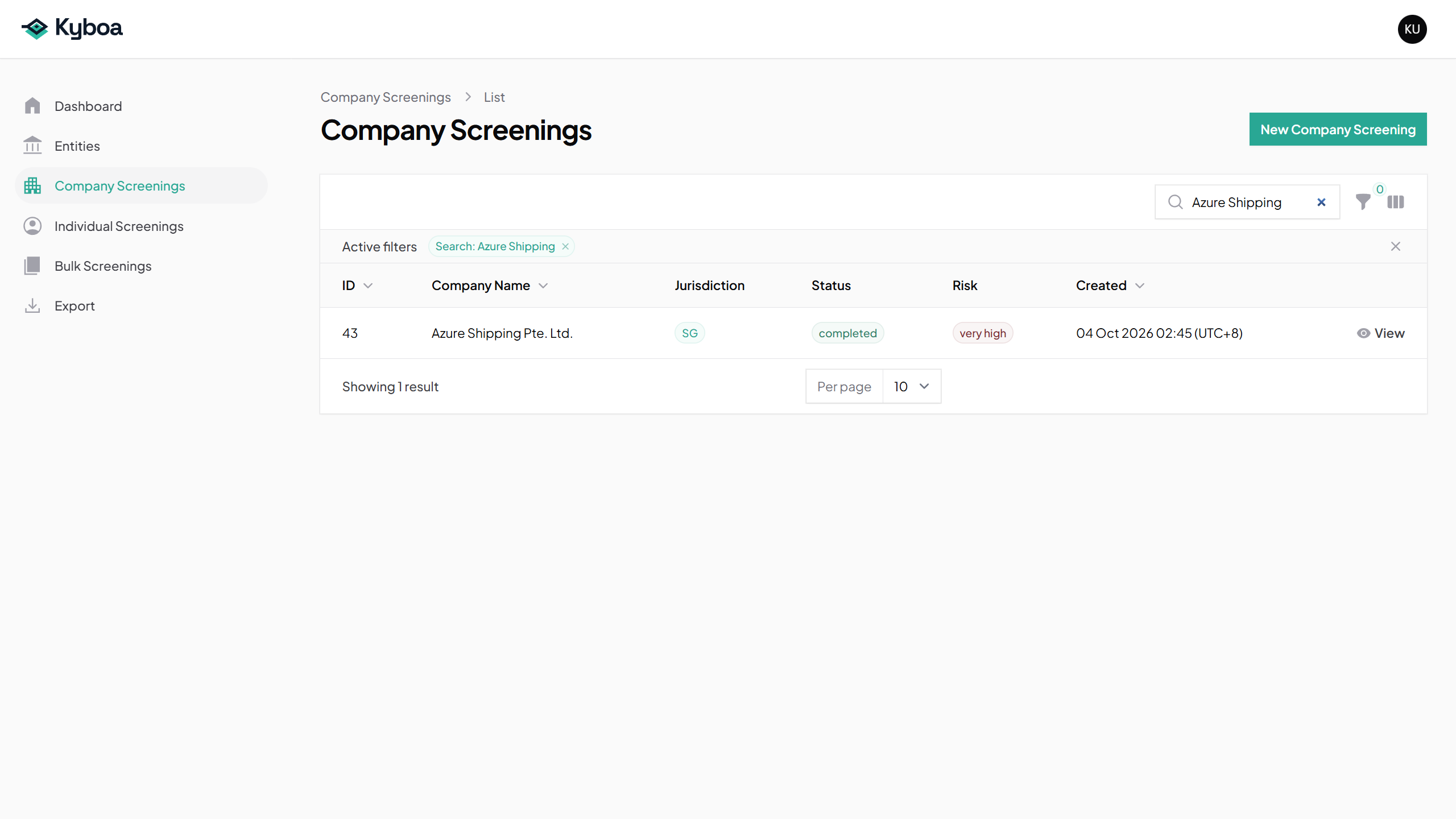
4. Find a Company screening
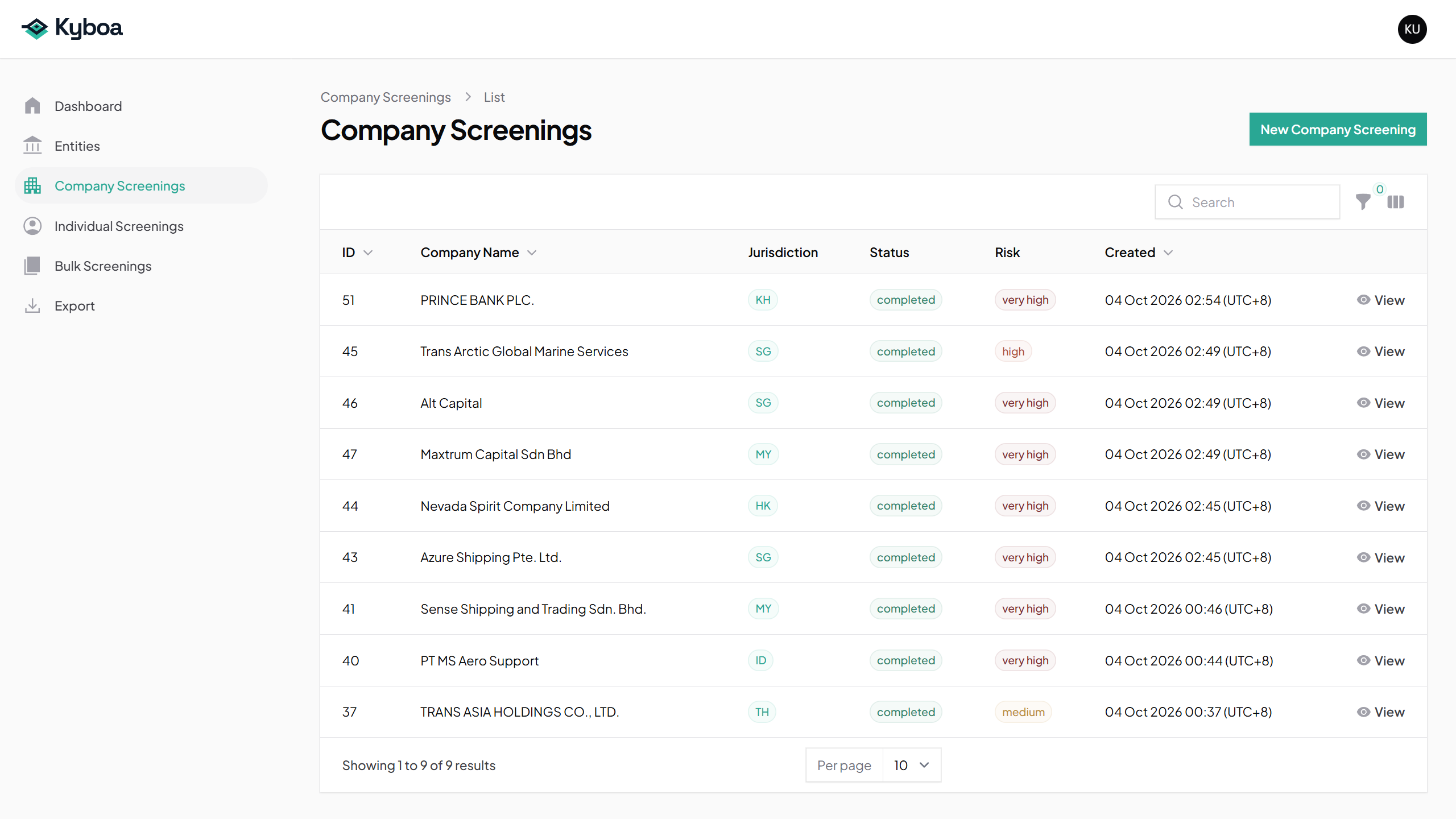
- Open Company Screenings.
- Search for Azure Shipping, or another part of the company name.
- Check the jurisdiction, created date and reference.
- Choose View to open the record, then View Report or Download PDF when the report is available.
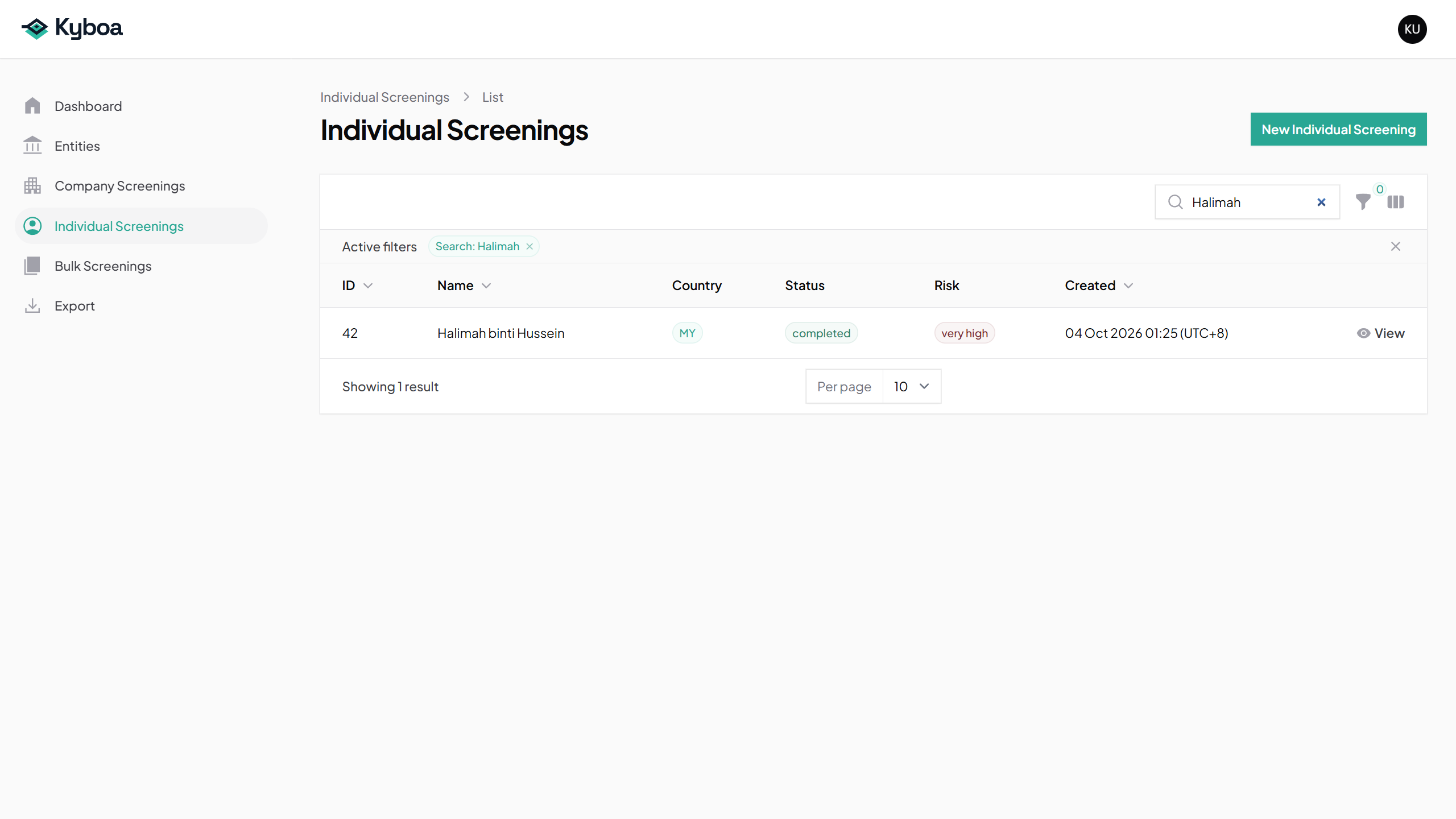
5. Find an Individual screening
- Open Individual Screenings.
- Search for part of the person’s name, such as Halimah.
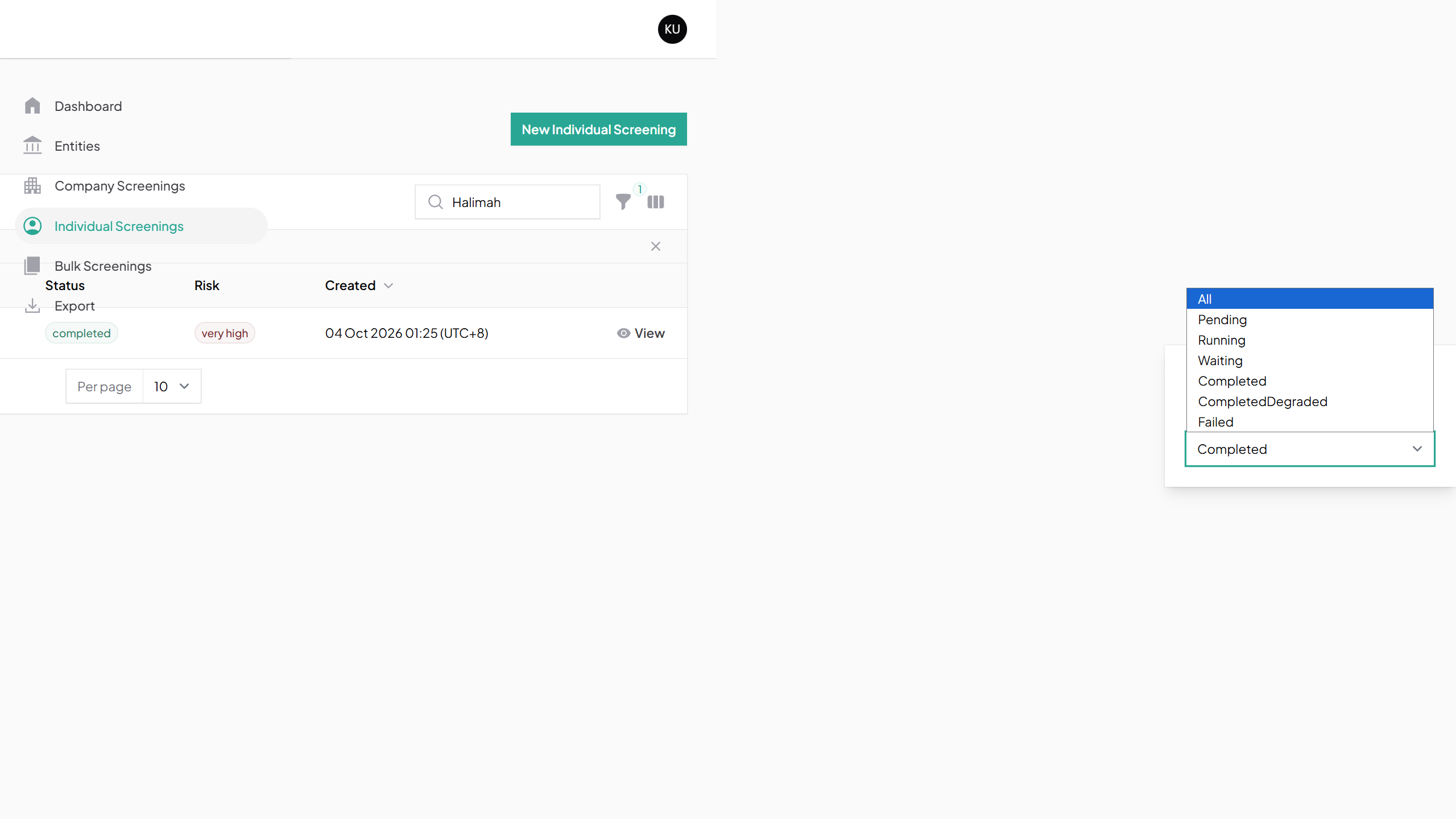
- Use Filter and select Completed to narrow the status when needed.
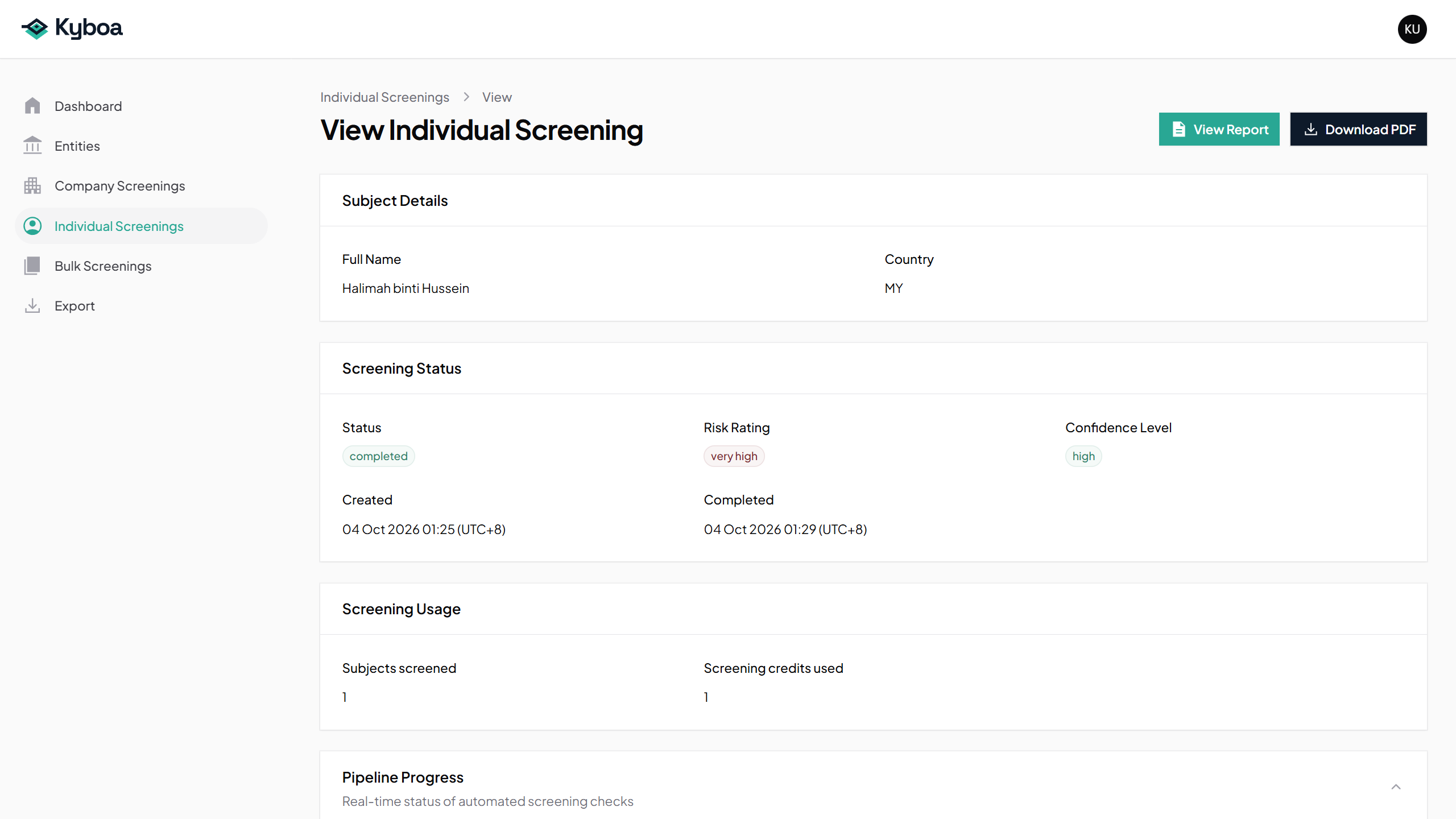
- Choose View, then open or download the report.
6. If you cannot find a record
Clear the search or filters, check the spelling and look on the correct register. Where several rows share a name, use the country or jurisdiction, date and reference to distinguish them.
A report becomes available after processing. Open the saved screening to check progress instead of submitting another copy.
7. Check completion
- You found the correct Entity or screening.
- You checked the identifying details and date.
- You reopened its history or report as required.