
1. Before you start
Use an Individual quick screening to check a person's name against watchlist sources and review adverse media and background information. The results and report are retained as a screening record.
You need the person's full name, the country they are associated with, and access to run screenings. Each Individual quick screening uses one screening credit.
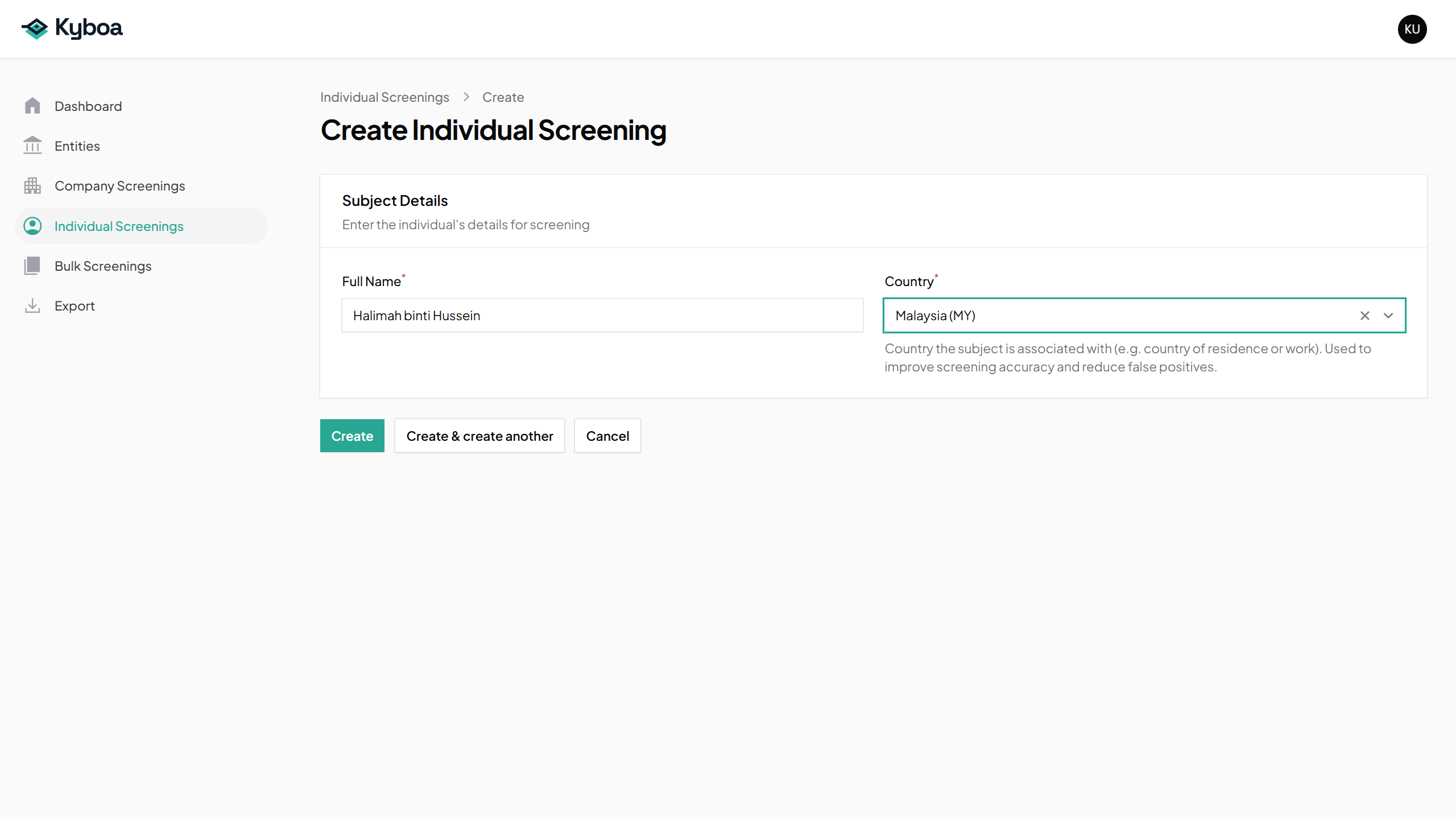
Full Name: Halimah binti Hussein
Country: Malaysia (MY)
The example shows results returned when this guide was prepared. Your results may differ as source information changes. A quick screening does not create a maintained Entity or set ongoing monitoring.
Watch the workflow
Follow the same example from entering the details to opening its report. The video is silent with captions; processing waits are shortened.
 Watch the walkthrough
2. Enter the details
- Open Individual Screenings from the sidebar.
- Choose New Individual Screening. The Dashboard's Create Individual Screening button opens the same form.
- Enter the person's Full Name. Use the name you need to screen, with accurate spelling.
- Choose Country. Search by country name or code. This is the country the person is associated with, such as where they live or work.
- Check both fields, then select Create once.
Use Create for this workflow. Create & create another leaves you ready to enter a further screening.
3. Follow progress
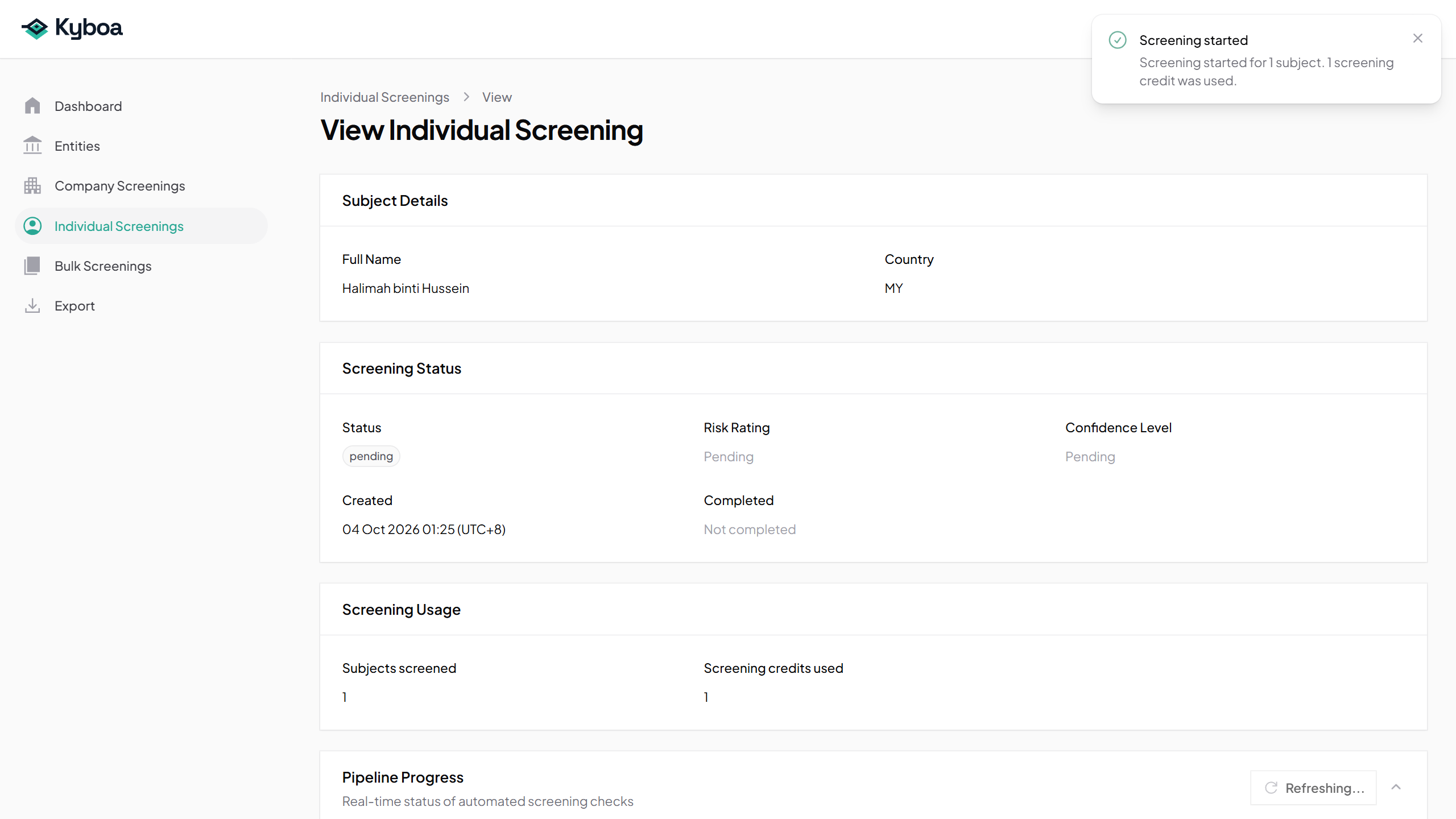
After submission, Kyboa opens the screening record and runs its checks automatically. The page updates while processing continues.
- Confirm the name and country on the saved record.
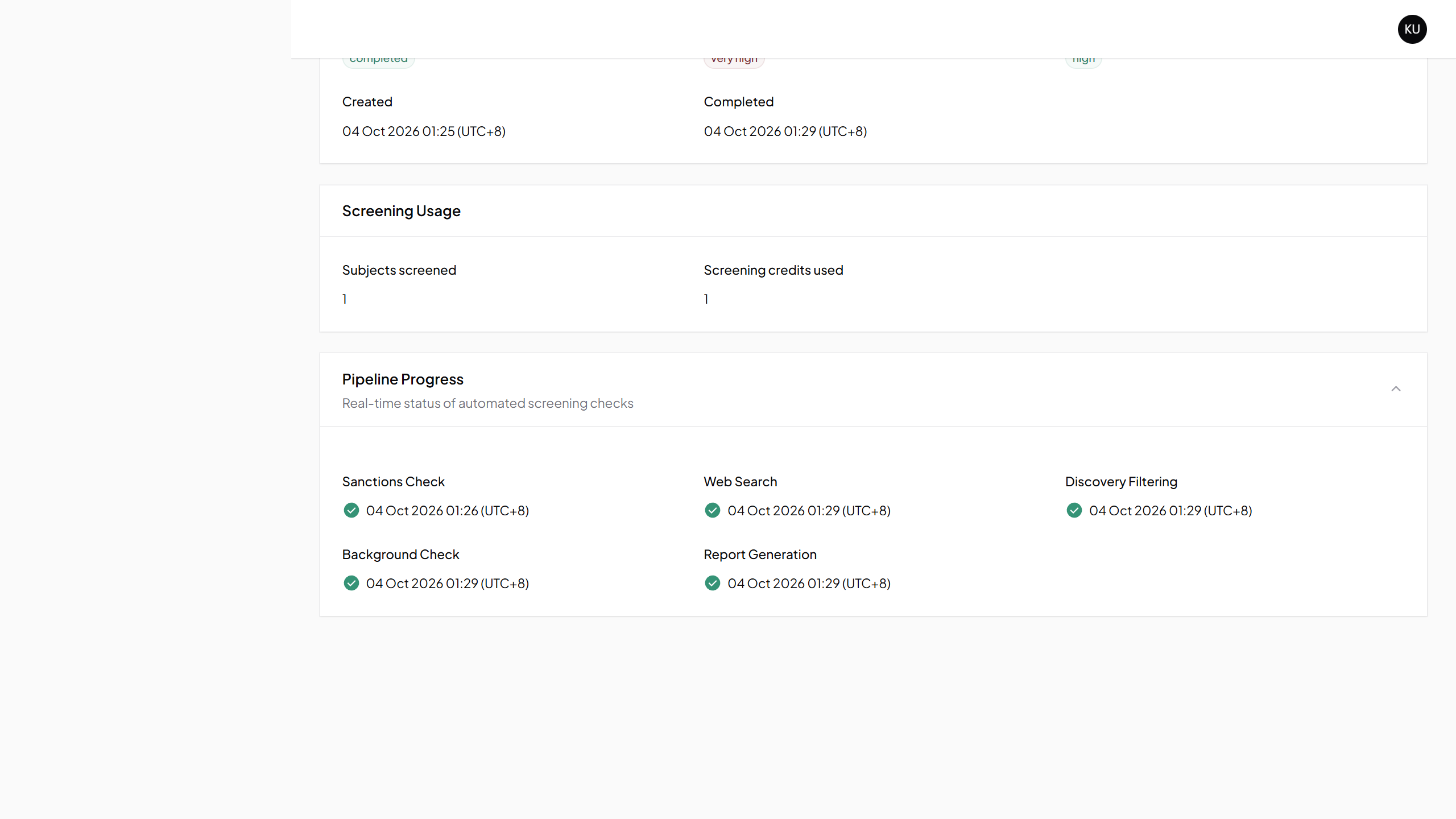
- Watch Screening Status and Pipeline Progress. Checks may be pending, running, or waiting before they complete.
- When the report is ready, use View Report or Download PDF.
A processing wait does not mean the screening was lost. Keep the saved record open, or return to it from Individual Screenings. Submitting the form again creates another screening.
4. Check the results
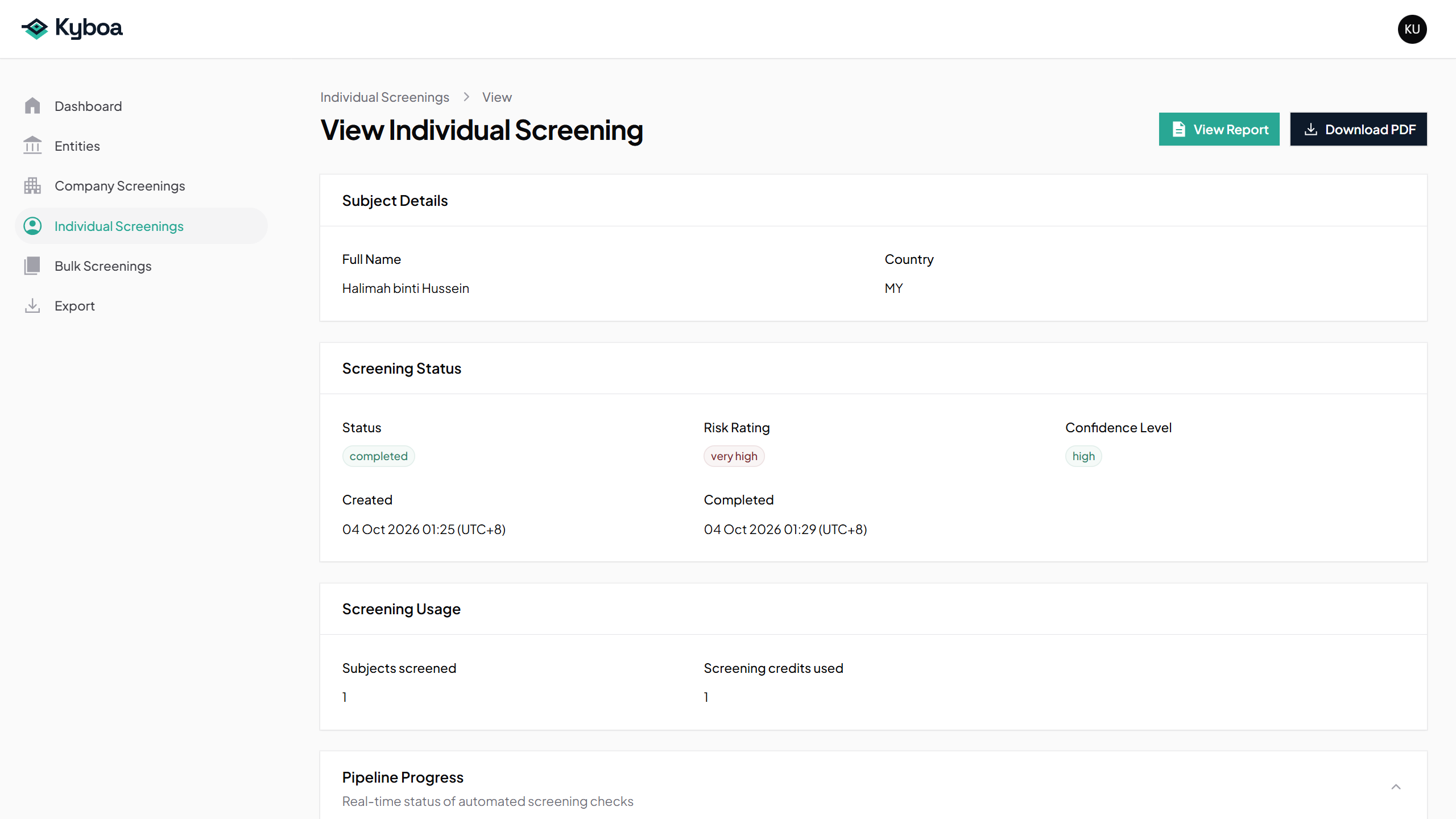
On the completed record, confirm the subject details and review the Status, Risk Rating, and Confidence Level. Check that the pipeline has finished before reading the report as a completed screening.
The risk rating and confidence level describe the screening output. They do not replace checking whether a returned record refers to your subject. Read the report's matching rationale and cited sources before drawing a conclusion.
5. Read and download the report
- Choose View Report on the screening record.
- Start with the Executive Summary, then read the subject information, watchlist matching, adverse media, and background sections.
- Check the source evidence and appendices where they explain a match or the scope of the checks.
- Choose Download PDF to save a copy. This action is available on both the screening record and the report page.
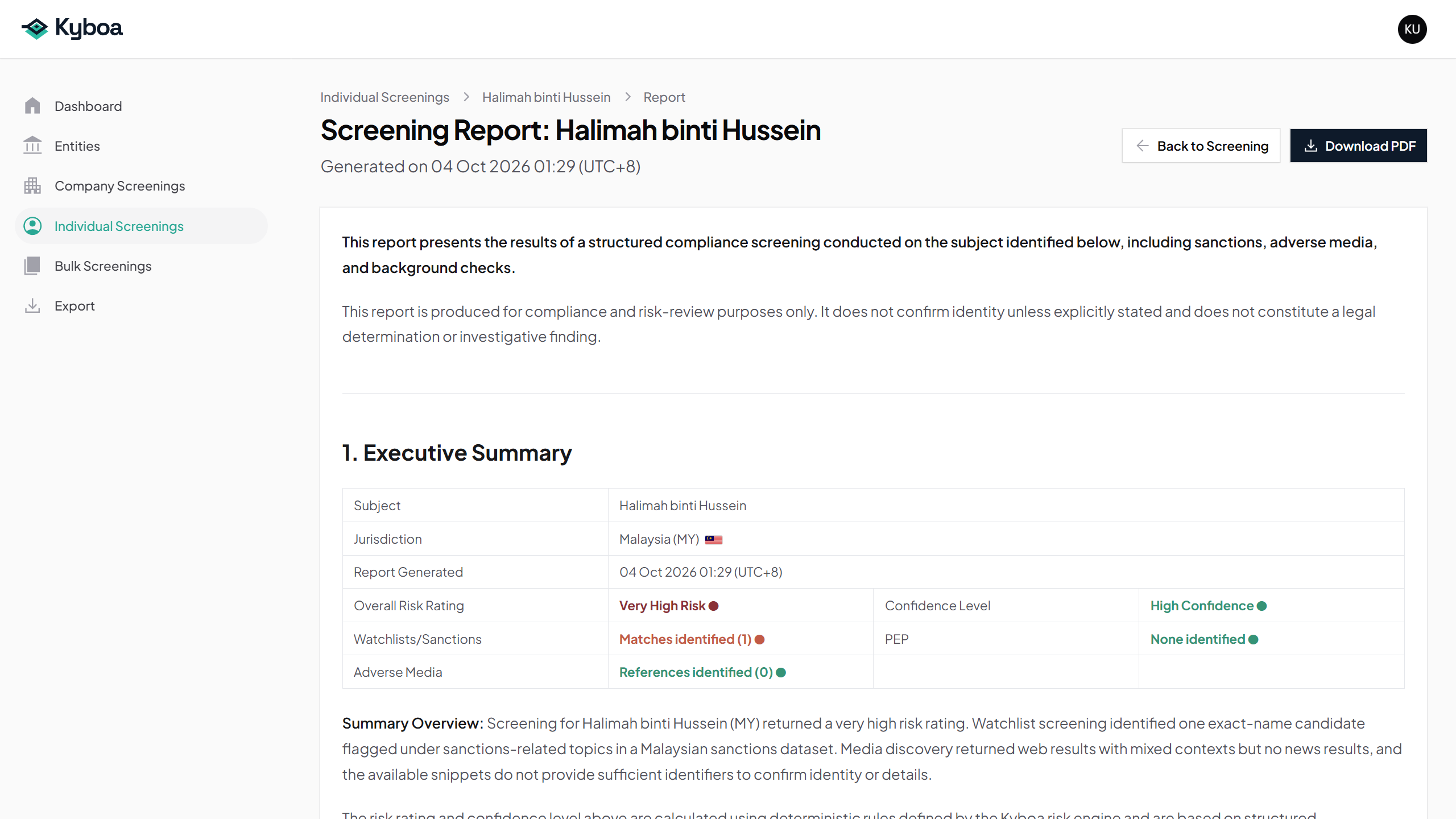
Open the example screening report PDF.
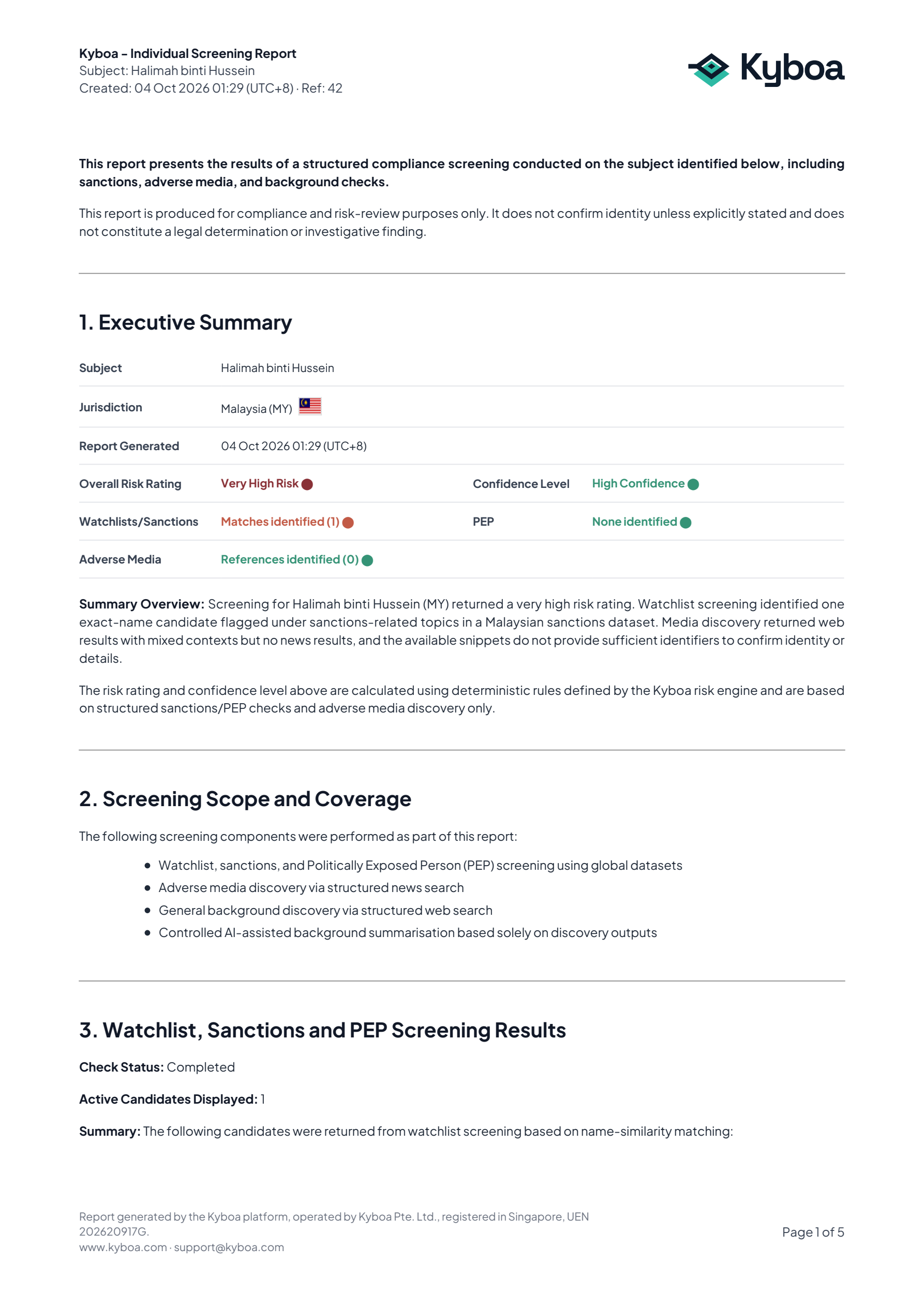
6. Find the screening again
- Return to Individual Screenings.
- Use Search to find the person's name. You can also use the status filter.
- Check the country, created date, and screening reference if the name appears more than once.
- Choose View to reopen the record, then View Report or Download PDF.
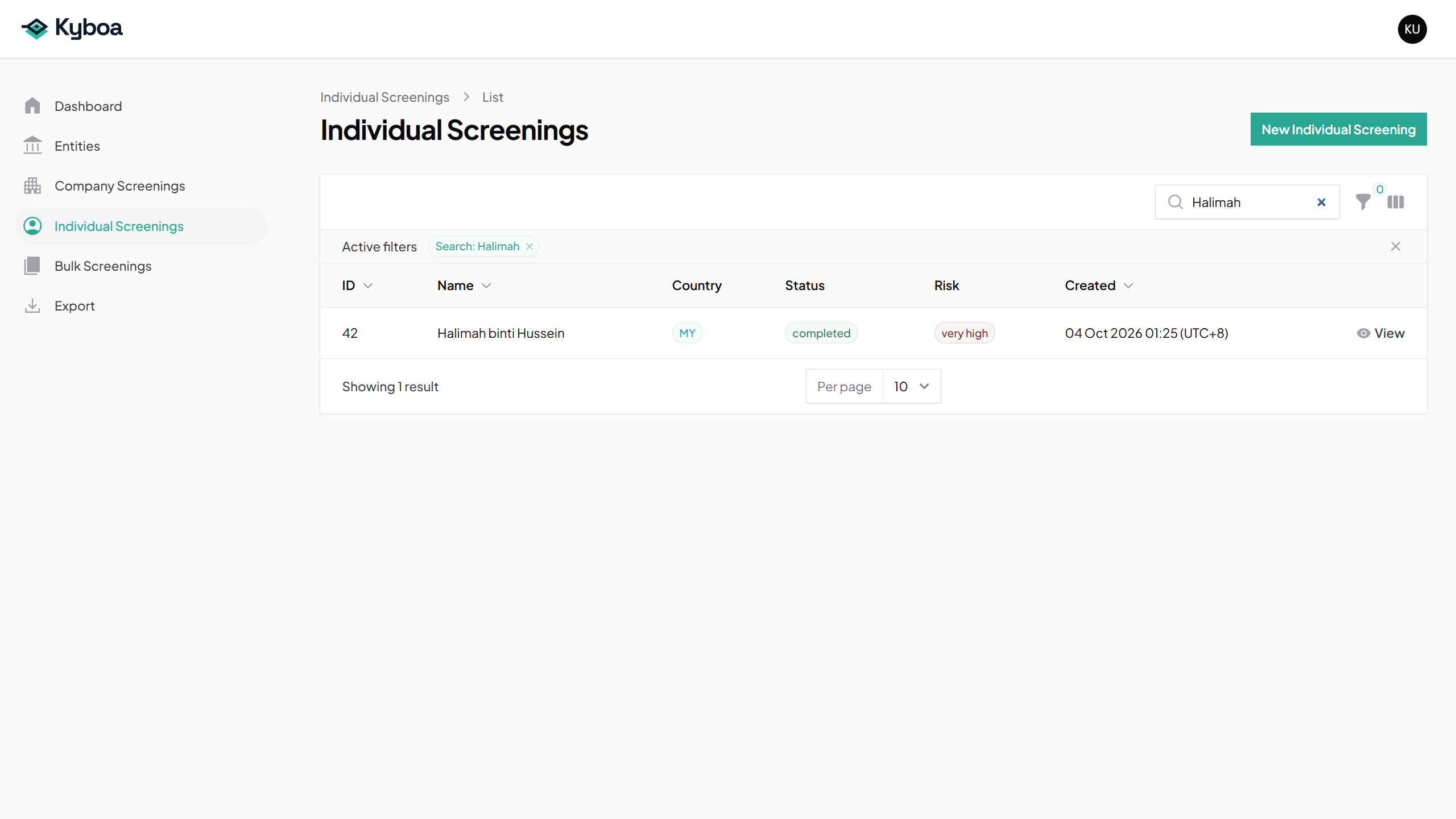
7. Common questions
| Situation | What to do |
|---|---|
| A required field is missing | Complete Full Name and Country, then submit once. |
| The screening is waiting | Check Pipeline Progress and any retry information. Return to the same saved record; avoid creating a duplicate while it is processing. |
| The screening is completed with unavailable sources | Read the warning and report limitations. A degraded result may be incomplete. |
| The screening failed | Read the error details on the record. Contact support with the screening reference if help is needed. |
| View Report is not yet available | Wait for report generation to finish and check the screening status. |
| A match has the same name | Read the matching rationale, identifiers and source evidence. Name similarity alone does not establish identity. |
8. Check completion
- The saved subject name and country are correct.
- You have checked the final status and any source limitations.
- You have read the report and assessed relevant matches and sources.
- You have downloaded the PDF if a retained copy is required.
- You can find the record again in Individual Screenings.