
1. Before you start
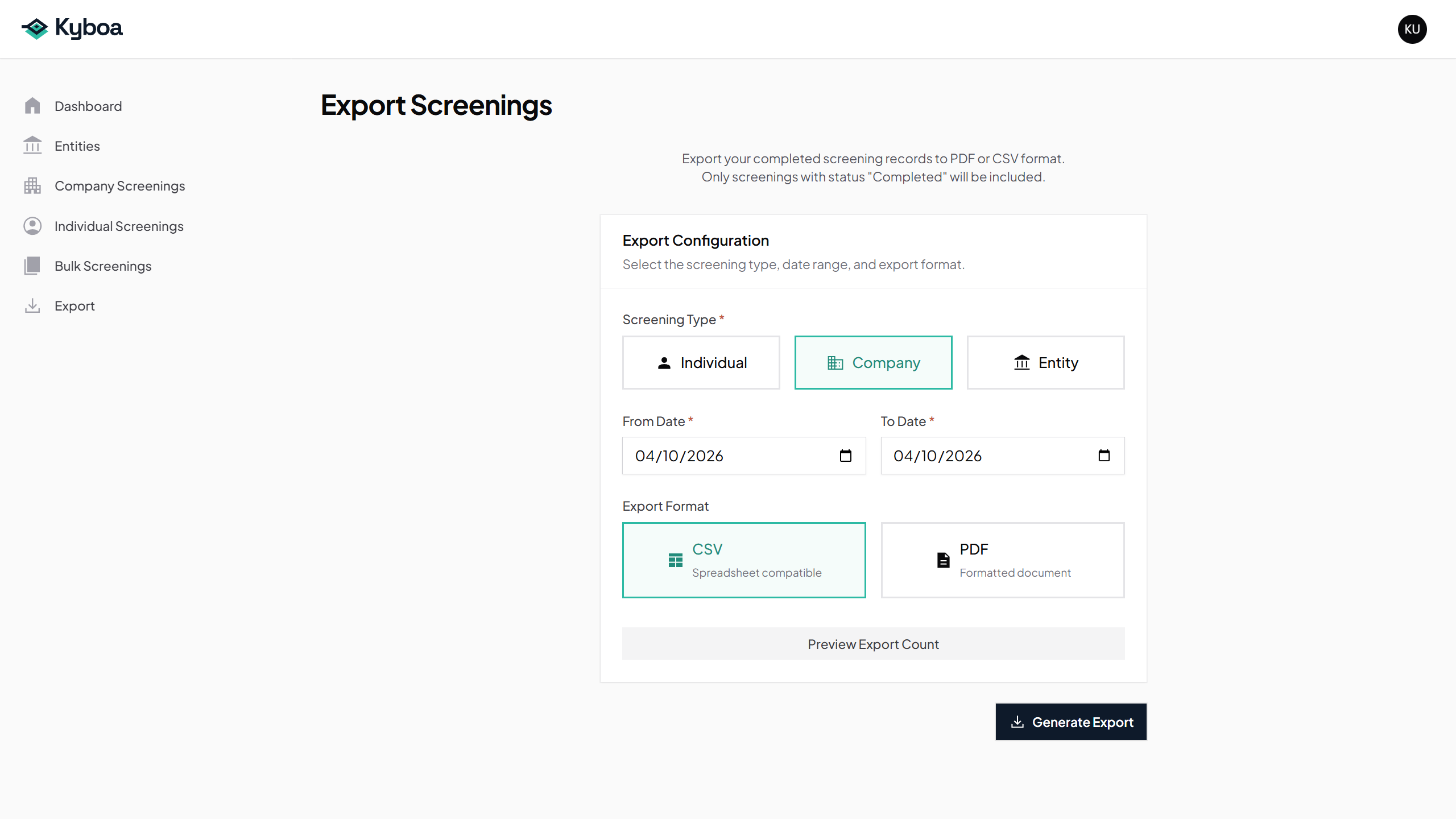
Export a register of completed screenings by type, date range or a selected Entity.
Only screenings with Completed status are included. Choose the screening type and the period you want to export. A register summarises screening records; the full screening report is downloaded from each screening separately.
Completed Company and Individual screenings
Watch the workflow
The video is silent with captions. Any processing waits are shortened.
 Watch the walkthrough
2. Choose type and date range
- Open Export and choose Screenings.
- Select Company for the first example.
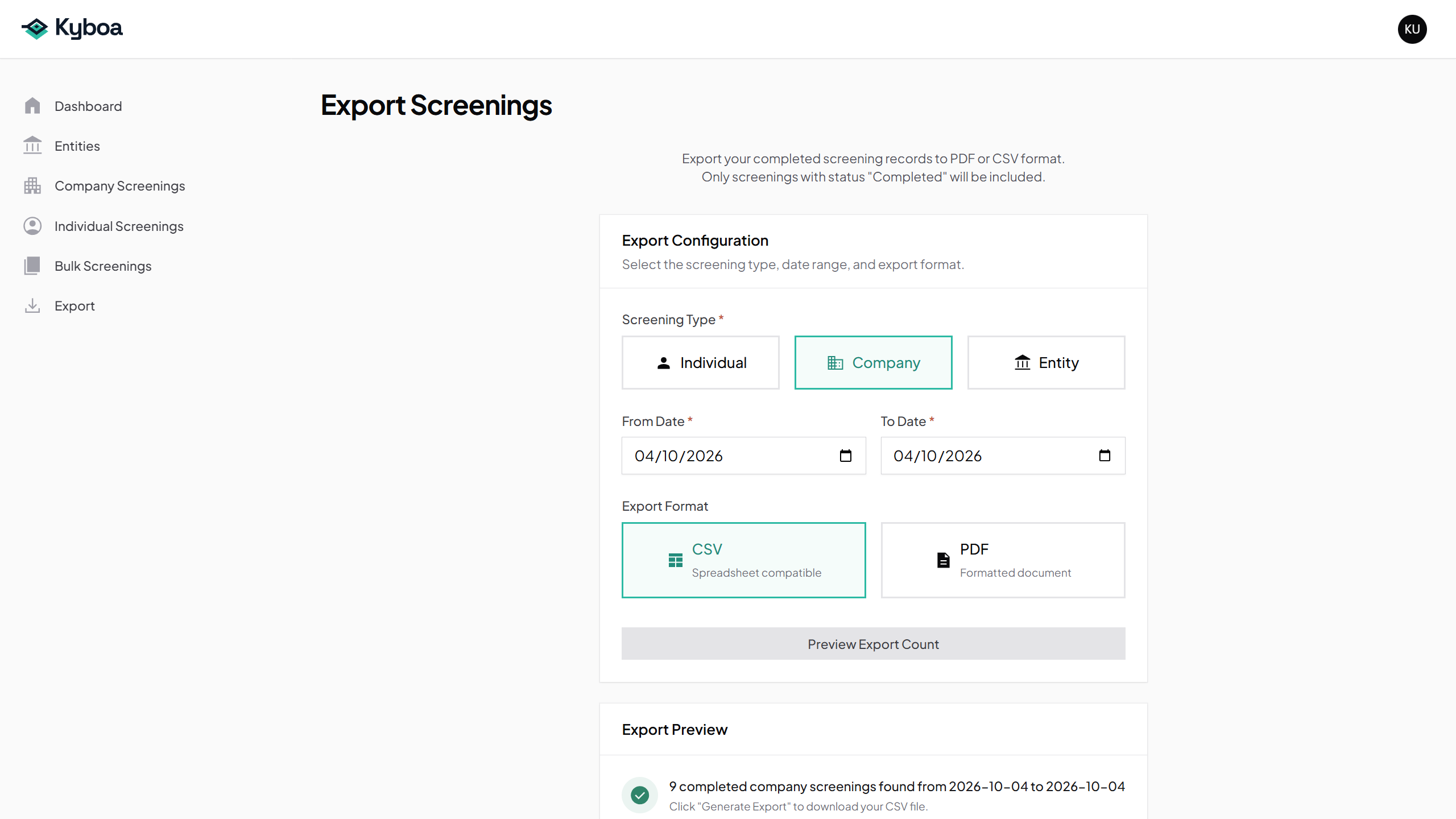
- Set From Date and To Date to include the records you need. The example uses 4 October 2026 for both.
- Choose Preview Export Count to check the matching completed records.
3. Download CSV
- Select CSV.
- Choose Generate Export.
- Open the downloaded CSV in your spreadsheet software and check the records.
Open the actual Company screening CSV example.
4. Download PDF
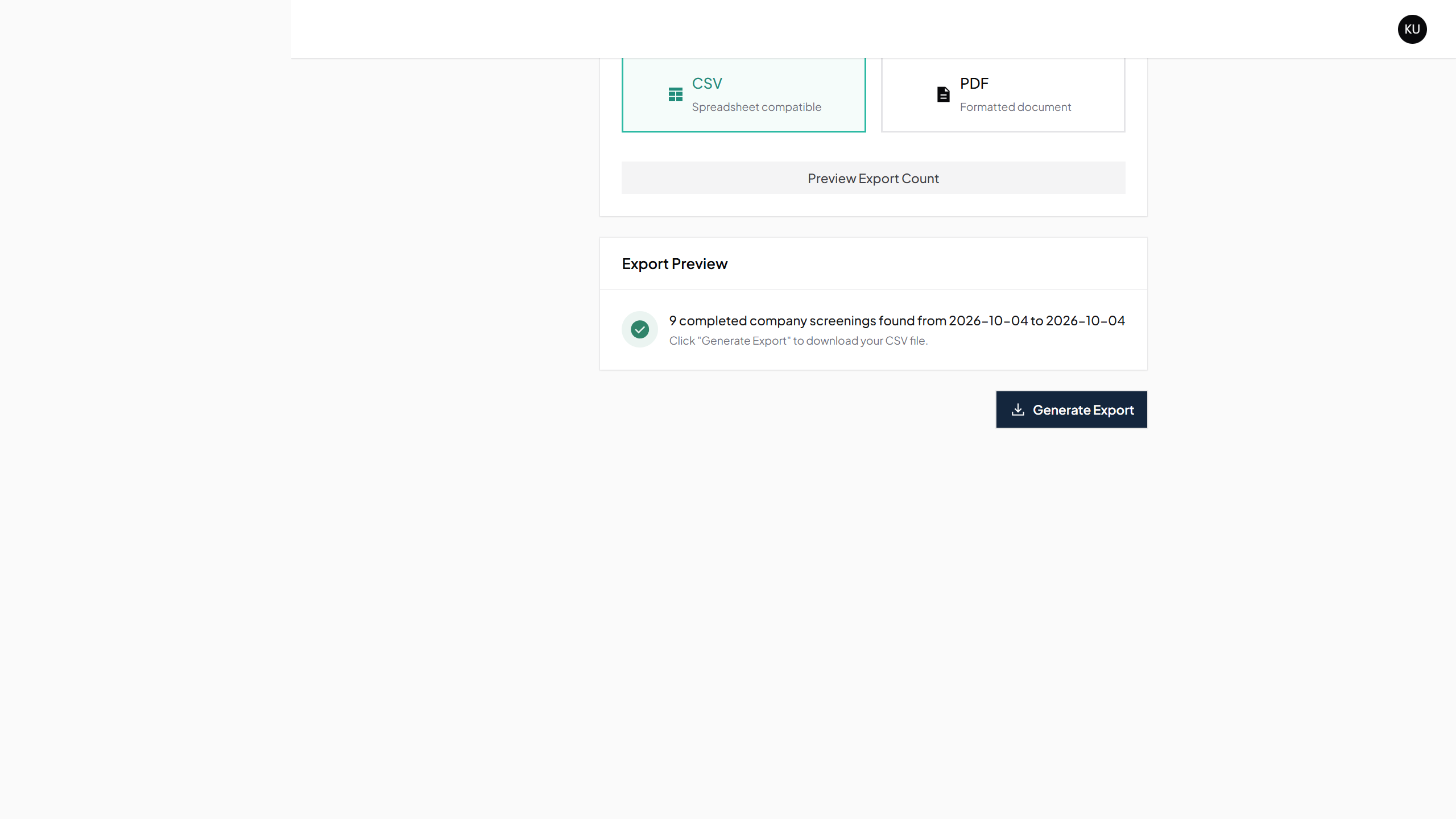
- Select PDF.
- Choose Generate Export.
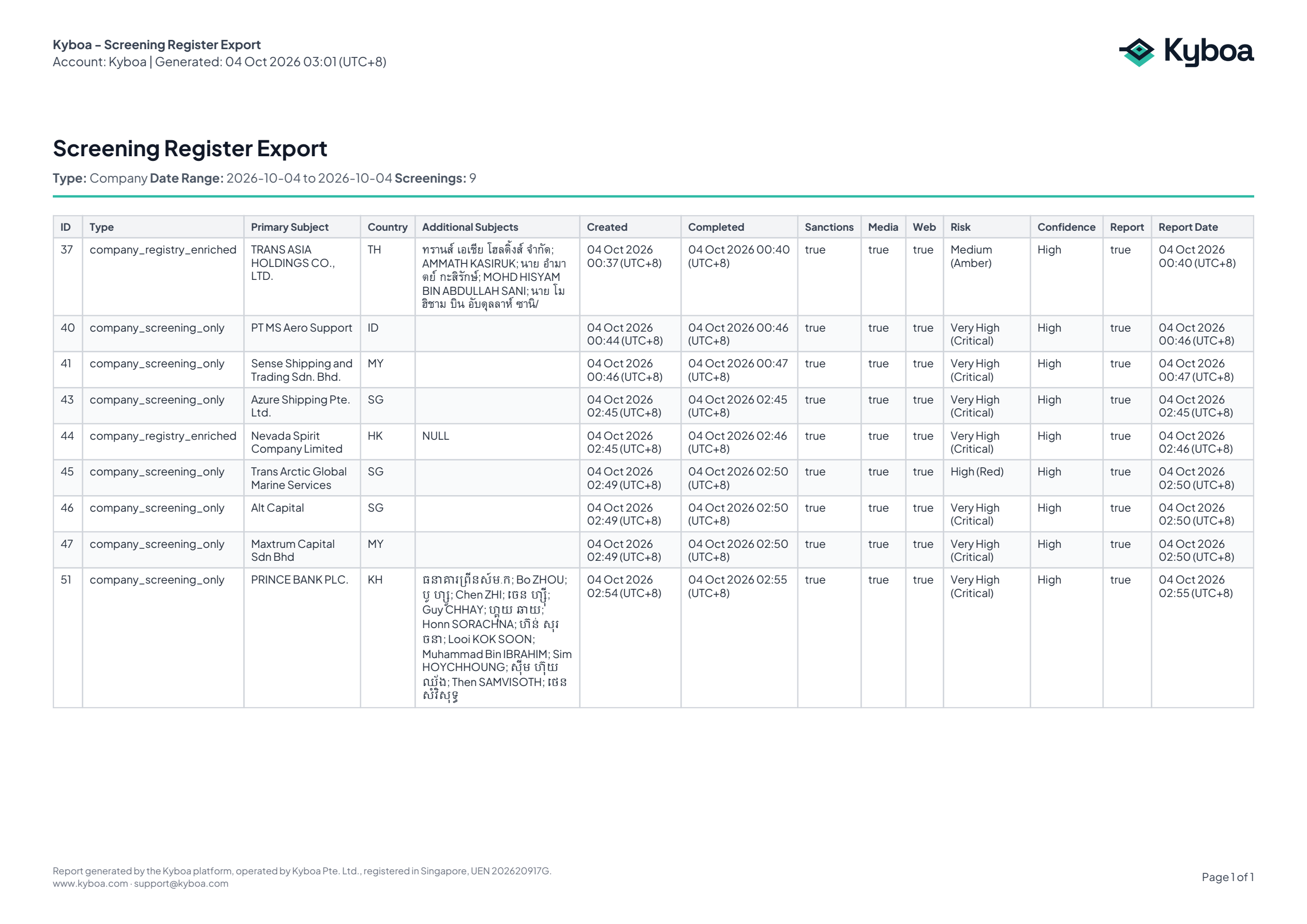
- Open the downloaded register and check the type, dates and rows.
Open the actual Company screening register PDF.
5. Export Individual or Entity screenings
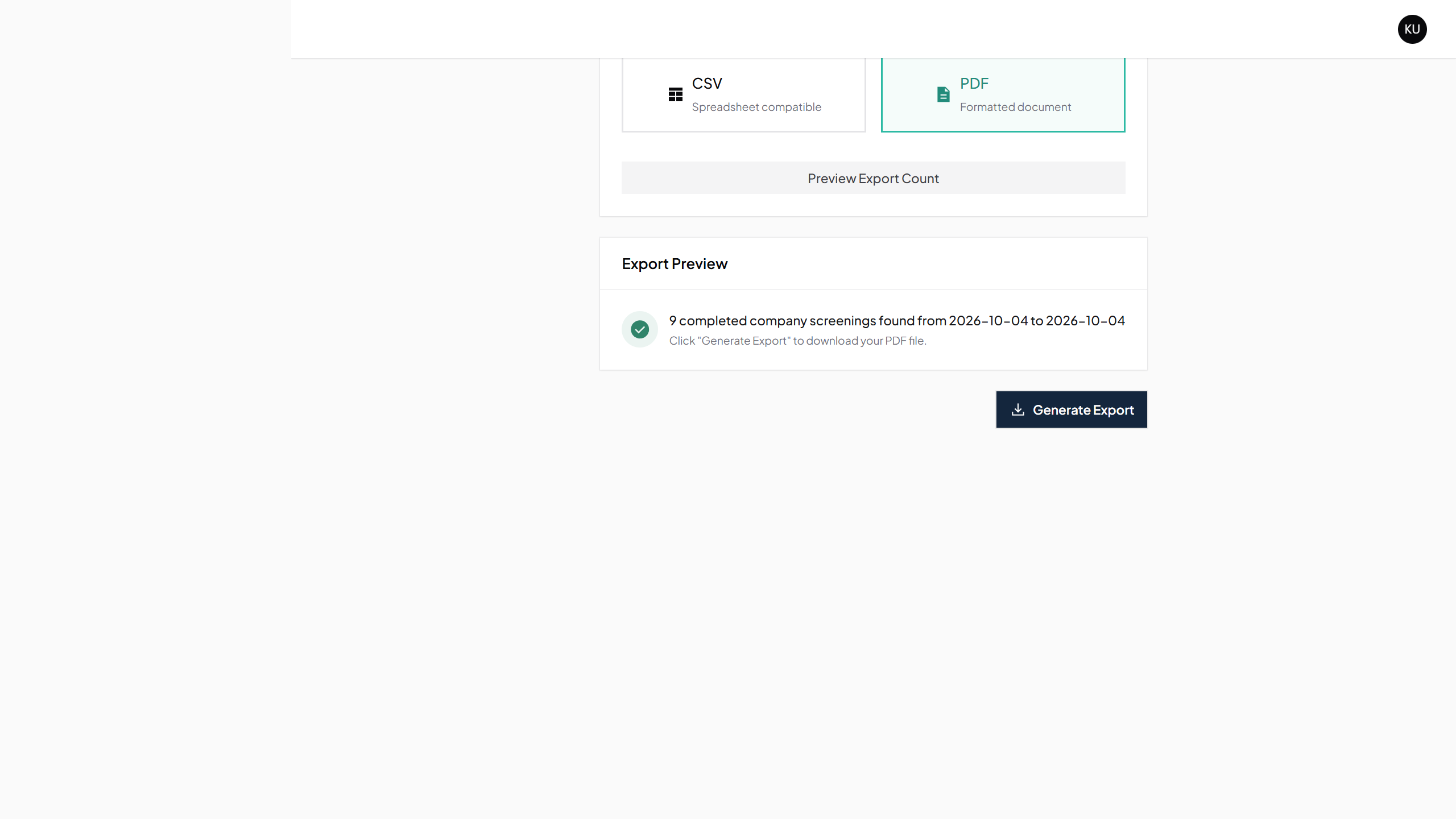
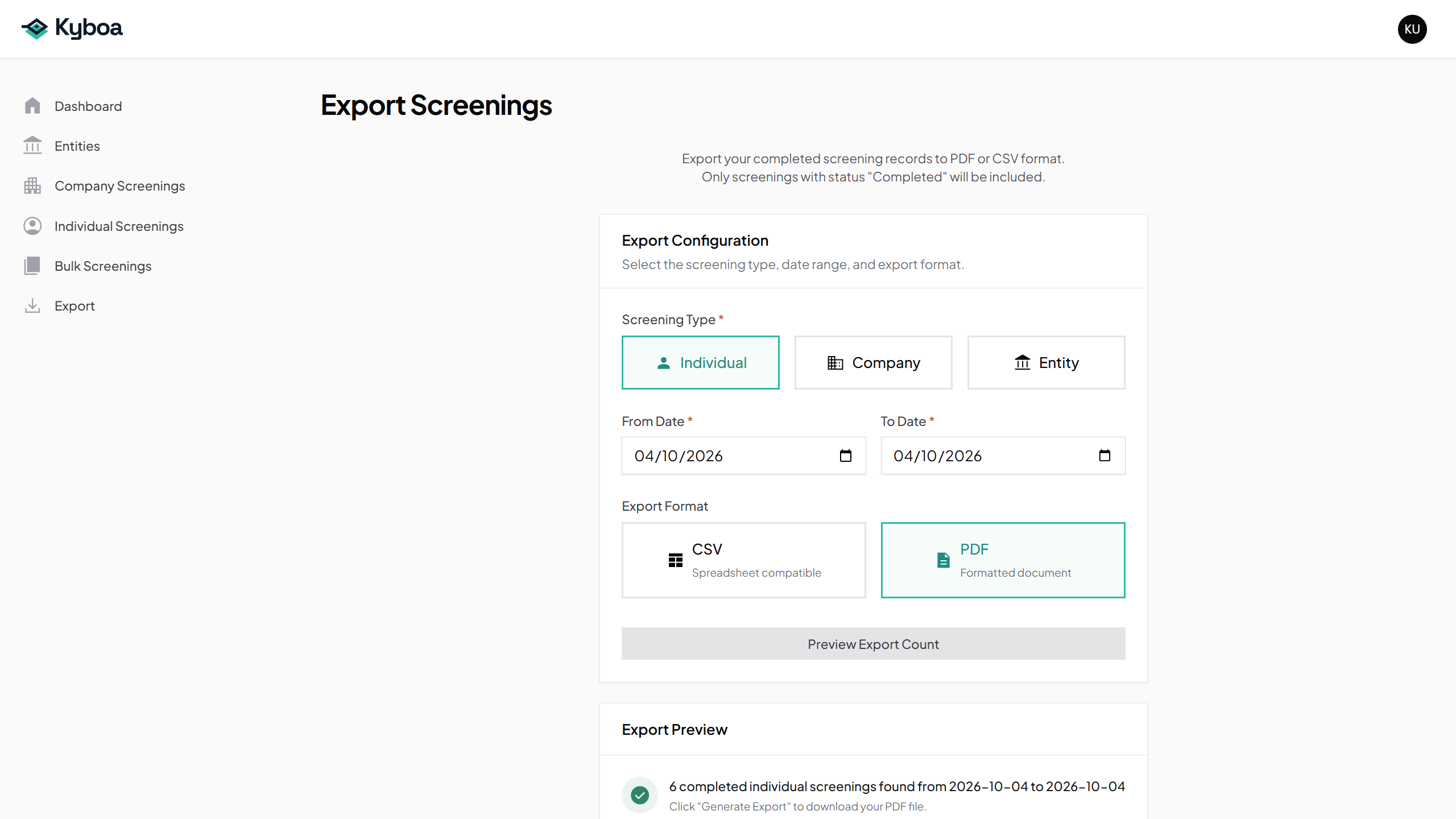
Choose Individual, preview the count and generate CSV or PDF in the same way.
Open the Individual screening CSV example · Open the Individual screening register PDF.
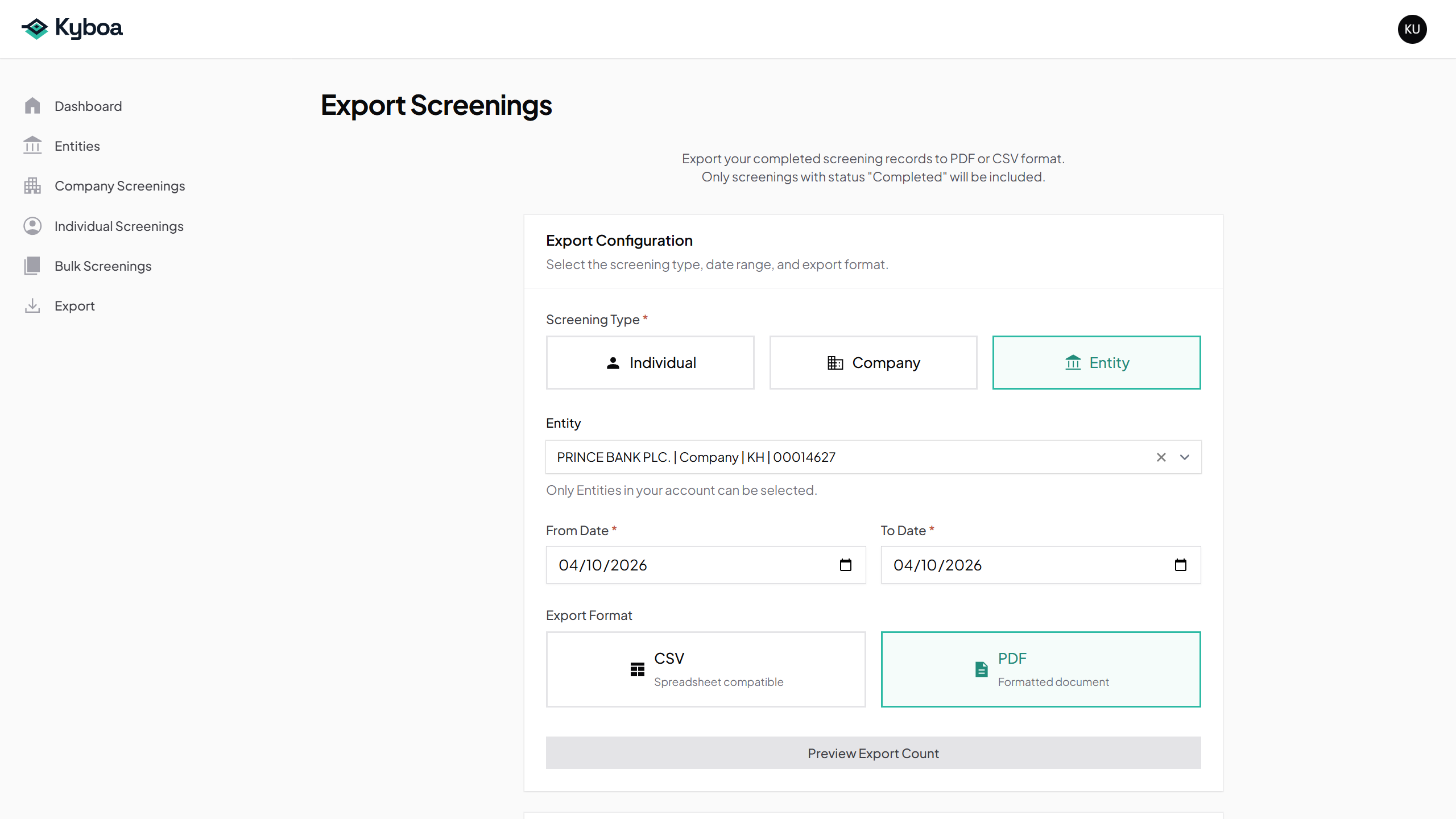
Choose Entity and select a maintained Entity to export only its completed screening history. You can also open Export Screenings from that Entity’s Screening History. Check the dates and preview before downloading.
6. If the preview is empty
Check the screening type, date range and selected Entity. Running, waiting, failed or degraded screenings are not included by the Completed-only export. If an Entity’s history contains different screening types in the chosen period, follow the message to select a period containing one type.
7. Check completion
- The selected type, dates and optional Entity are correct.
- The preview count is the expected number of completed screenings.
- The downloaded CSV or PDF opens and contains the expected records.