
1. Before you start
Use Screening Only to screen a company name without retrieving a registry record.
You need the company name, its jurisdiction and access to run screenings. A quick Company screening saves a screening record; it does not create a maintained Entity or set monitoring.
The Screening Only form is available for all jurisdictions. This name-only screening uses one screening credit.
The worked example shows the output captured for this guide. Results and source coverage can change.
Azure Shipping Pte. Ltd. · Singapore (SG)
Watch the workflow
The video is silent with captions. Any processing waits are shortened.
 Watch the walkthrough
2. Enter the company details
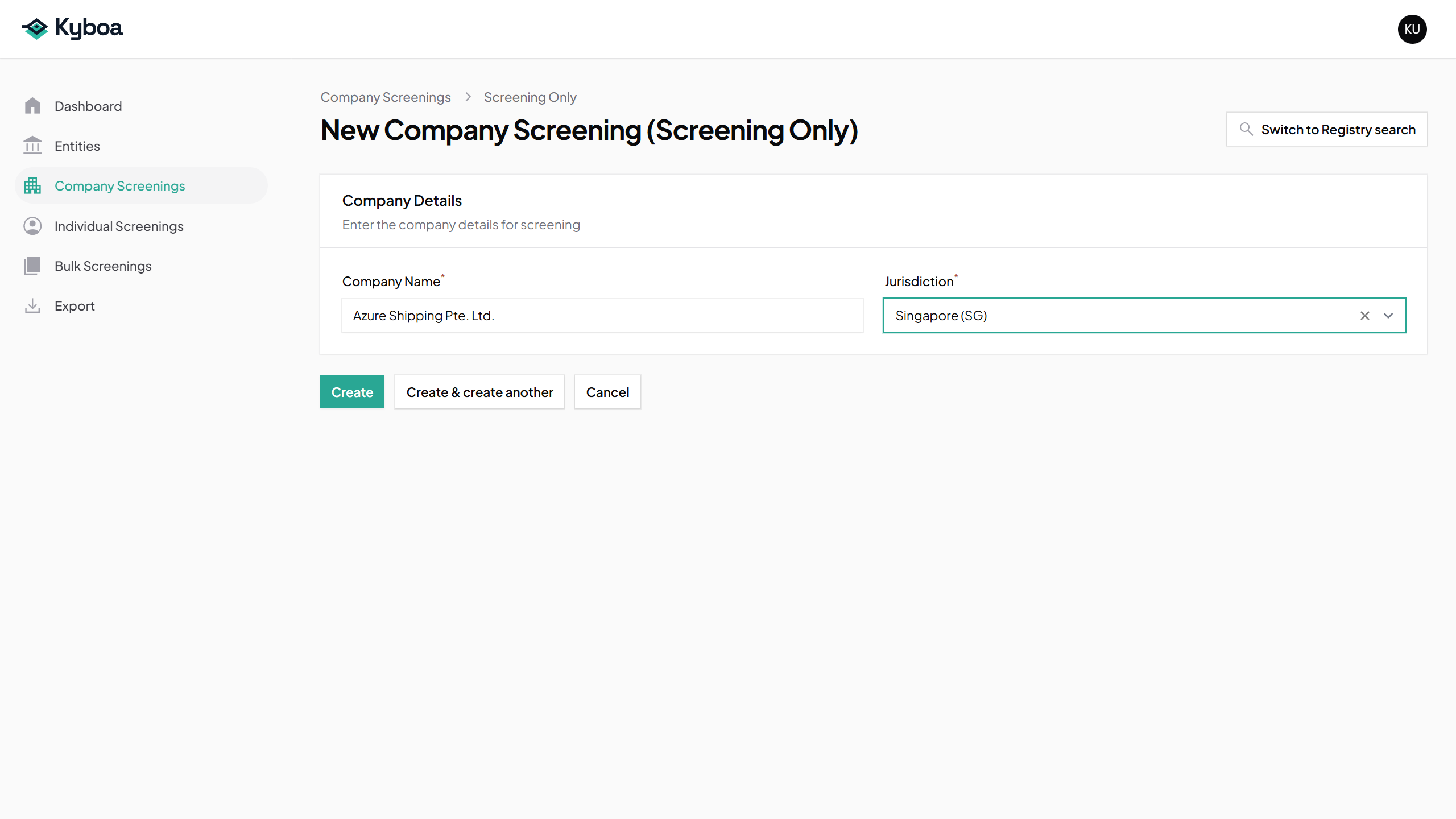
- Open Company Screenings and choose New Company Screening.
- Choose Screening Only.
- Enter Azure Shipping Pte. Ltd. in Company Name.
- Choose Singapore (SG) in Jurisdiction.
- Check both fields and choose Create once.
3. Follow progress and check completion
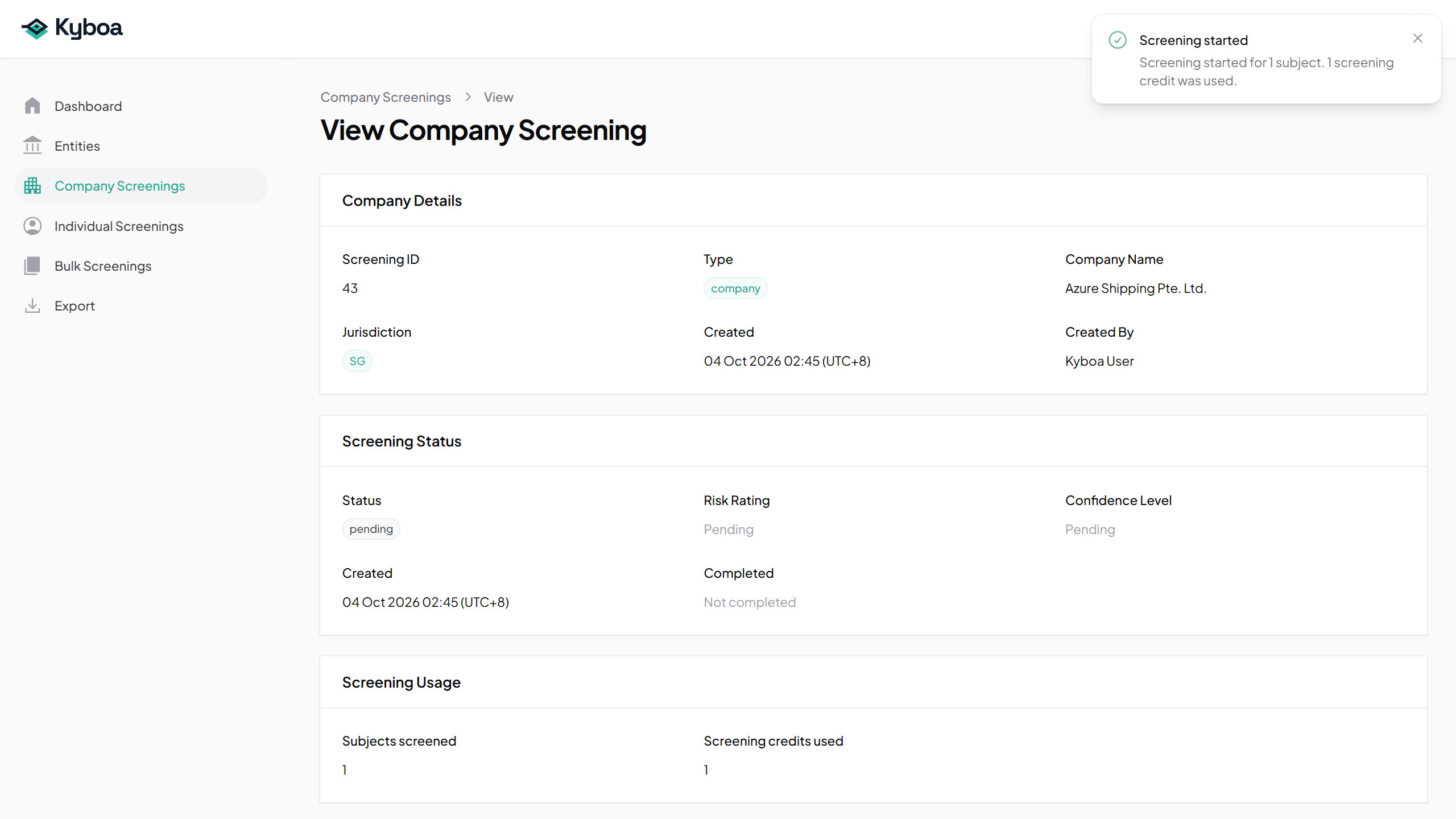
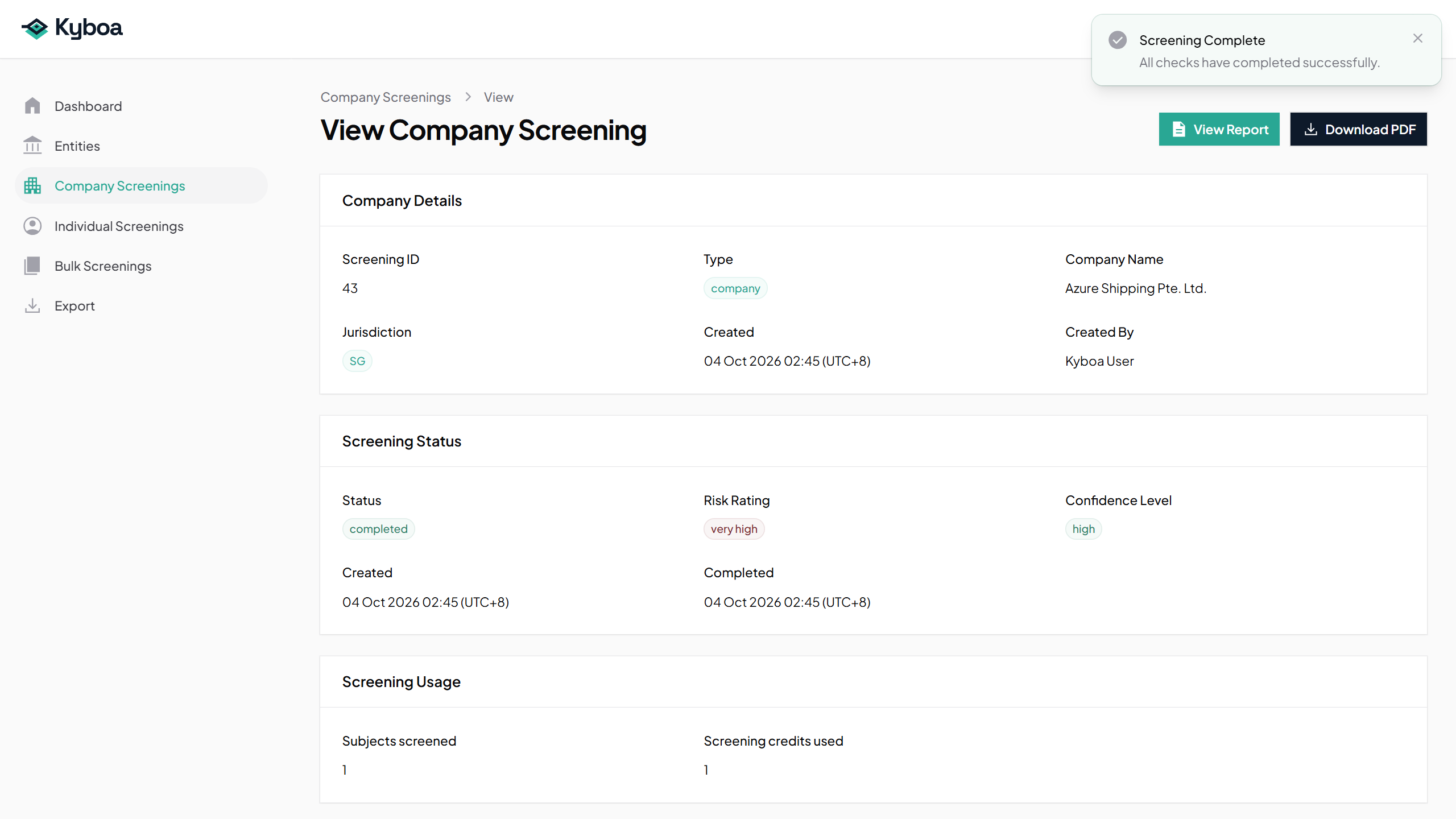
Kyboa opens the saved record. Check Screening Status and Pipeline Progress while the checks run. When processing finishes, check the final status, risk rating and confidence level before opening the report.
4. Read the Company report
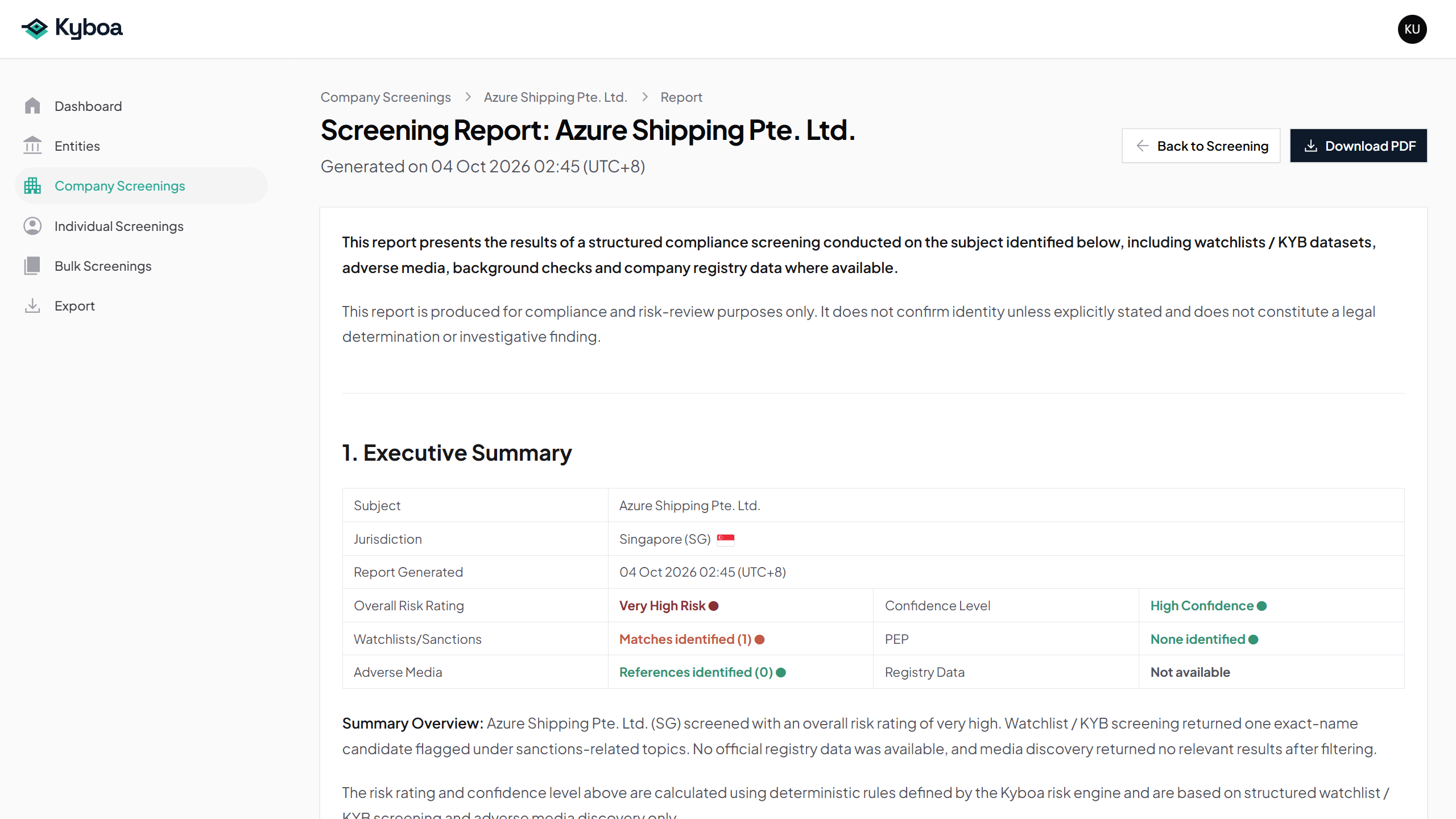
- Choose View Report and start with the Executive Summary.
- Review Screening Scope and Coverage so you know what was checked.
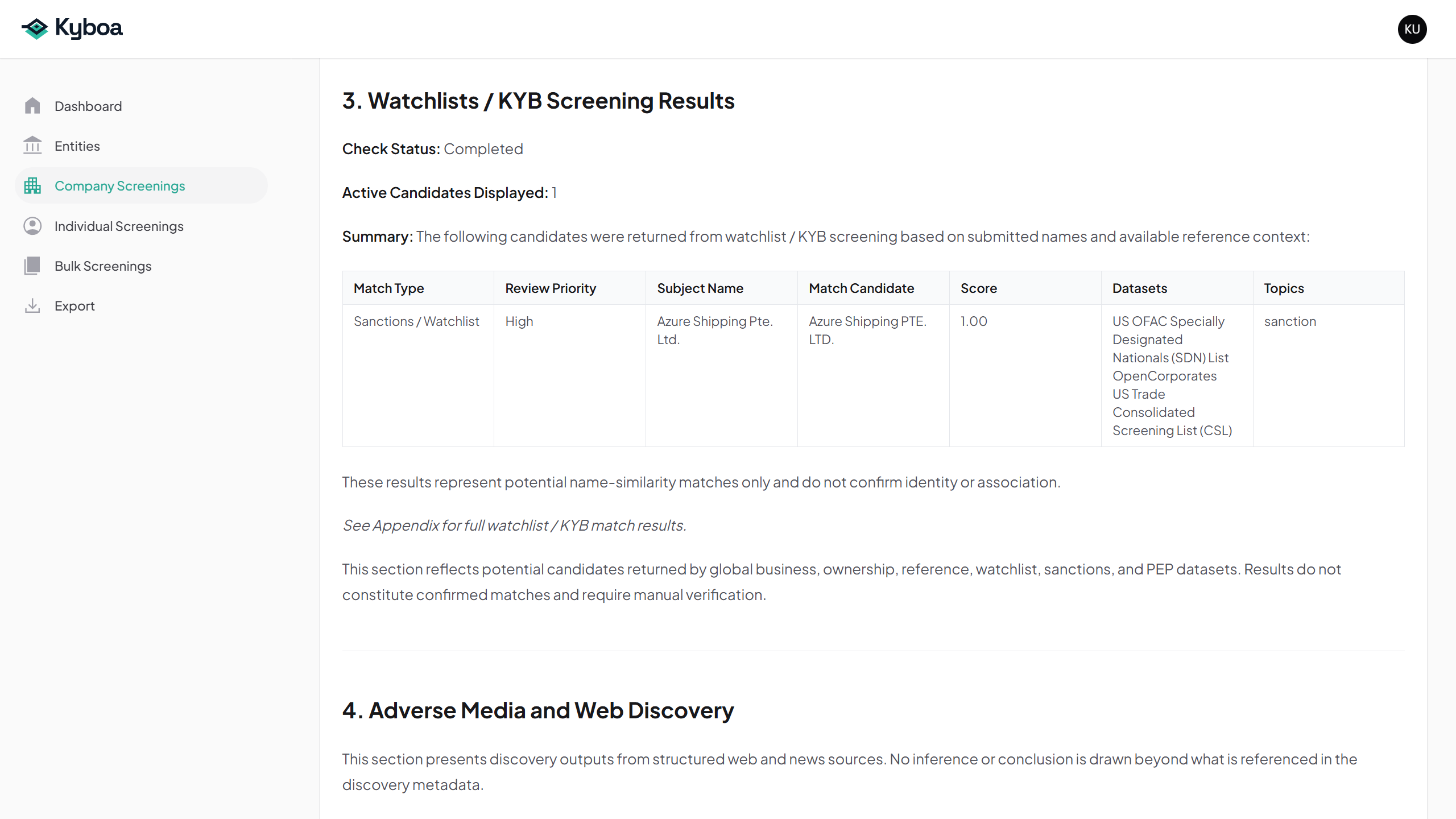
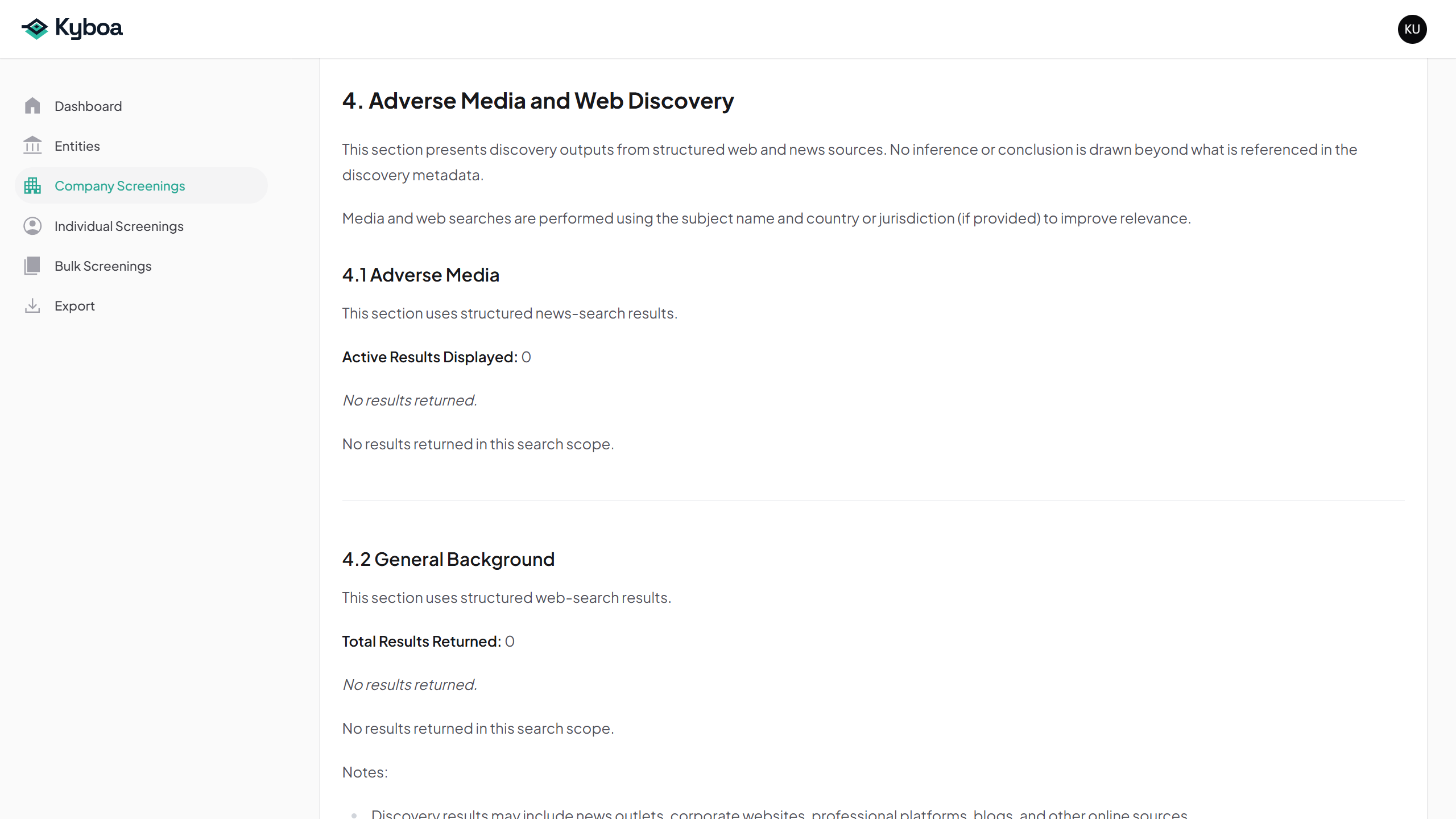
- Read the watchlist candidates, adverse media, background information, assessment and recommended next steps.
- Check supporting sources and appendices. A name-similarity match does not establish the company identity.
5. Download the report PDF
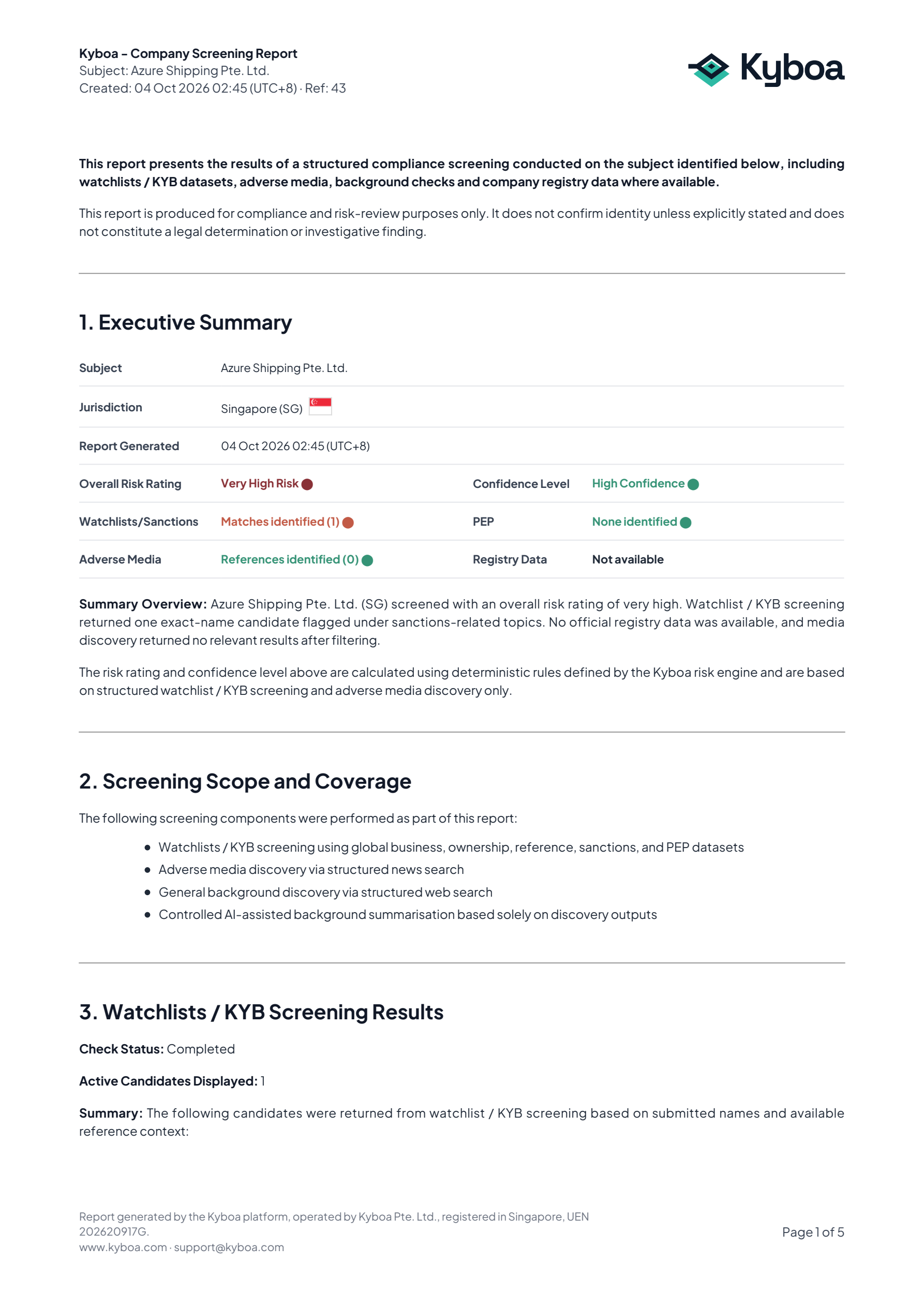
- Choose Download PDF on the screening record or report page.
- Open the downloaded file and retain it with your screening evidence when required.
Open the actual example Company report PDF.
6. Find the screening again
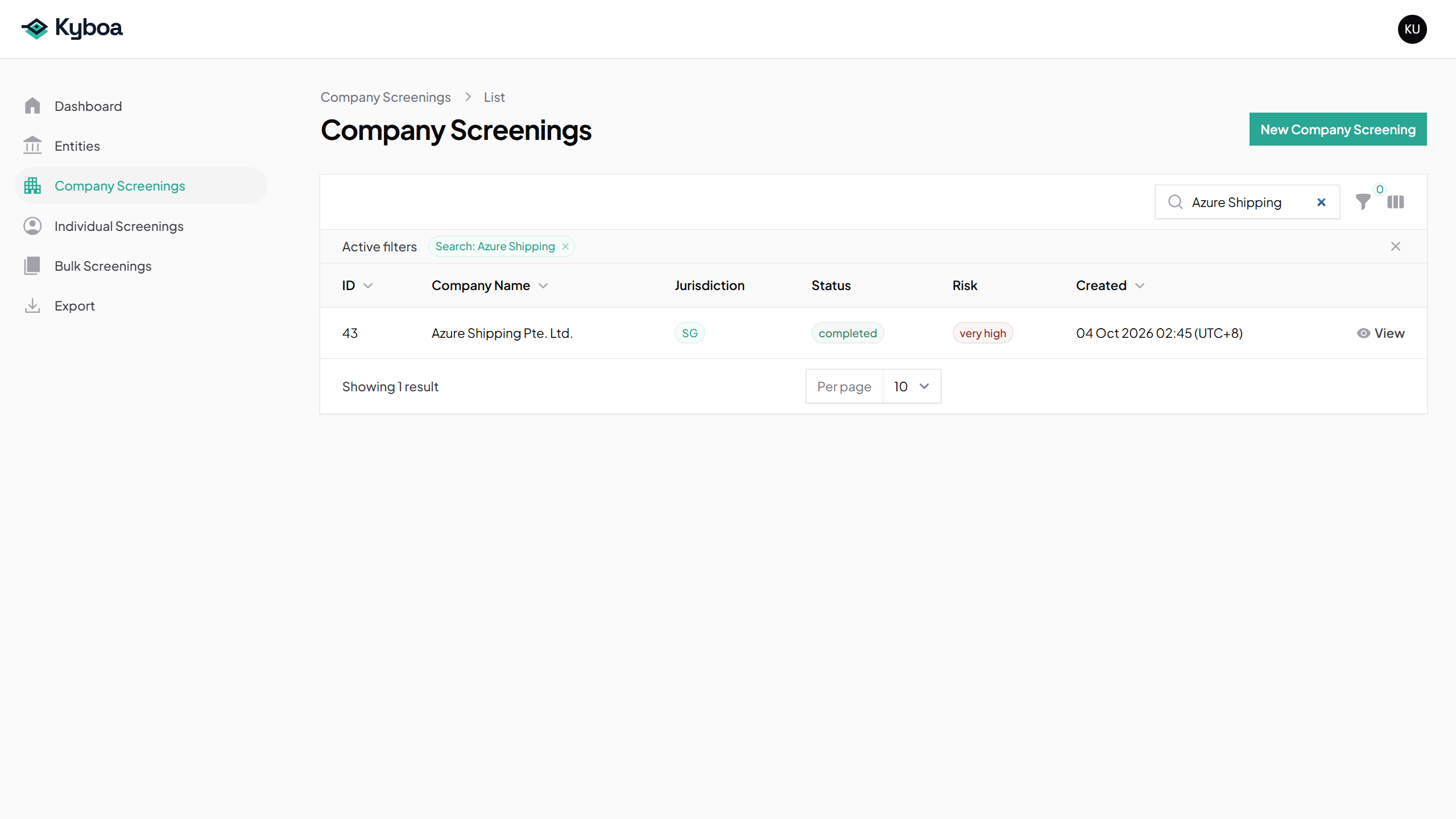
- Return to Company Screenings.
- Search for the company name. Check the jurisdiction, created date and reference if several records match.
- Choose View, then View Report or Download PDF.
See Entities when you need a maintained client record with monitoring.
7. Common questions
If processing is waiting, keep the same saved record and check its retry information. Do not submit again just because the report is taking time.
If the screening fails or finishes with unavailable sources, read the error or limitations on the record. Contact support with the screening reference if needed. A report with missing checks requires review of those limitations.
8. Check completion
- The company name and jurisdiction are correct.
- You have checked the final status and source limitations.
- You have read the report and assessed relevant candidates and sources.
- You have saved the PDF if required and can reopen the record.