
1. Before you start
Create several ordinary company screenings conveniently from a list of names.
Use Bulk Screenings when you have several company names to screen. Each successful row creates a normal screening and uses one screening credit. The batch can contain up to 10 names.
Bulk screening creates the same kind of screening as entering each name separately. It does not import registry data or create maintained Entities. Submit Company and Individual batches separately.
Three companies · Singapore and Malaysia
Watch the workflow
The video is silent with captions. Any processing waits are shortened.
 Watch the walkthrough
2. Choose the screening type
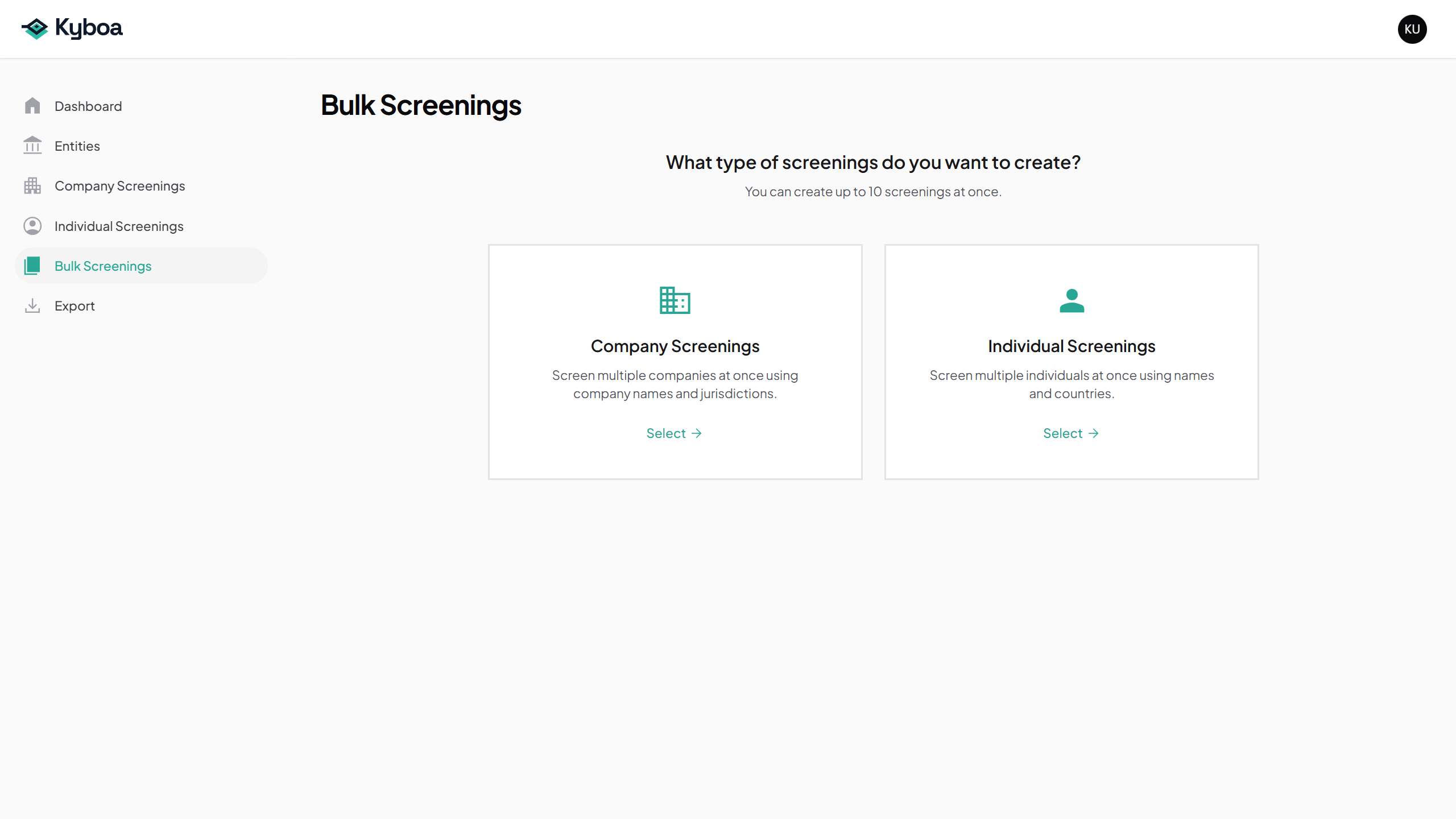
- Open Bulk Screenings.
- Choose Company Screenings.
3. Enter names in the correct format
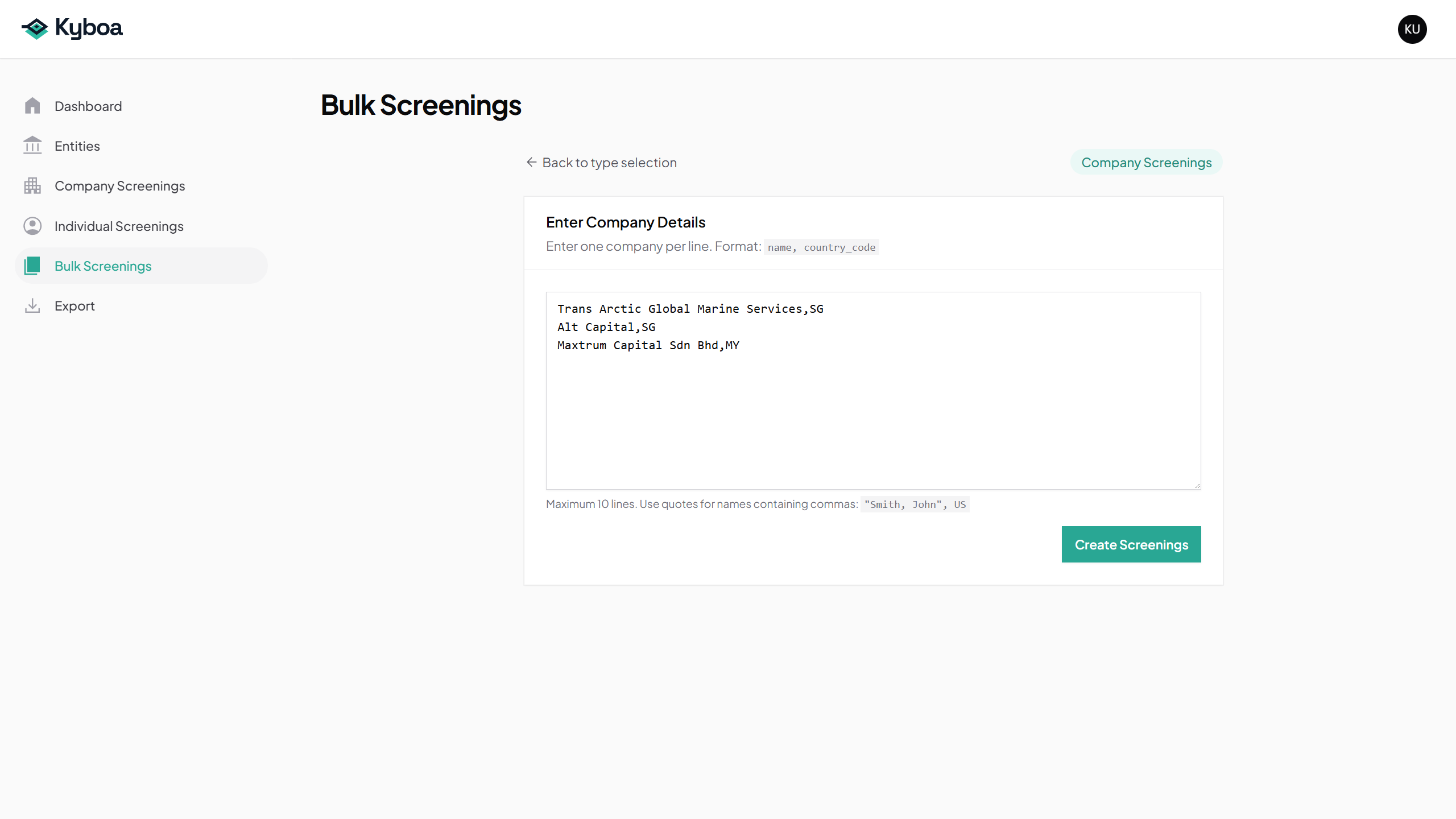
Enter one subject per line as name,country_code. Separate the name and two-letter country code with a comma. Use the codes shown below for this example.
Trans Arctic Global Marine Services,SG
Alt Capital,SG
Maxtrum Capital Sdn Bhd,MY
- Paste or enter the three example lines.
- Check each name, comma and country code. Correct any validation messages shown.
- Check that all three intended names and country codes are present.
4. Submit the batch once
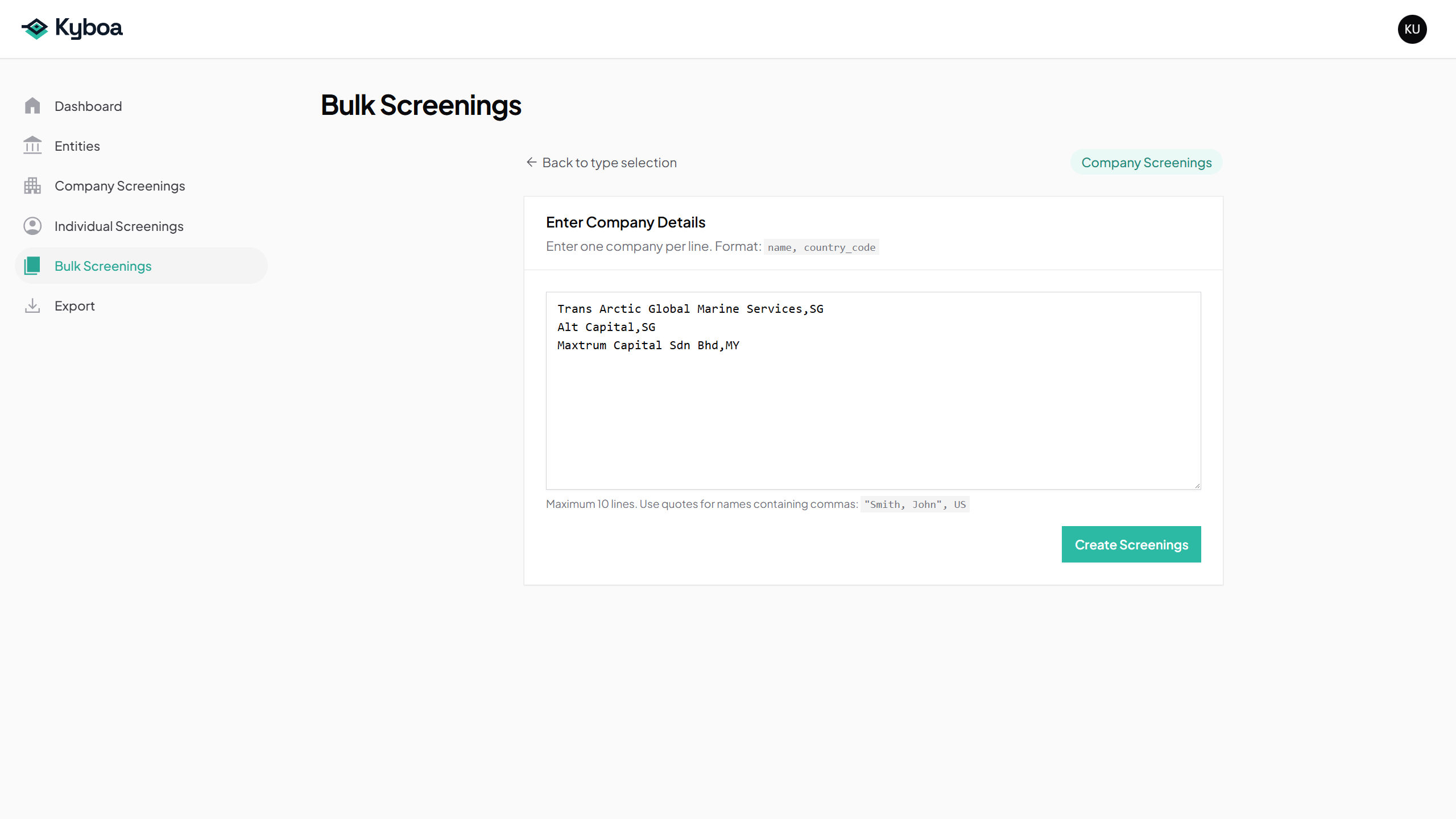
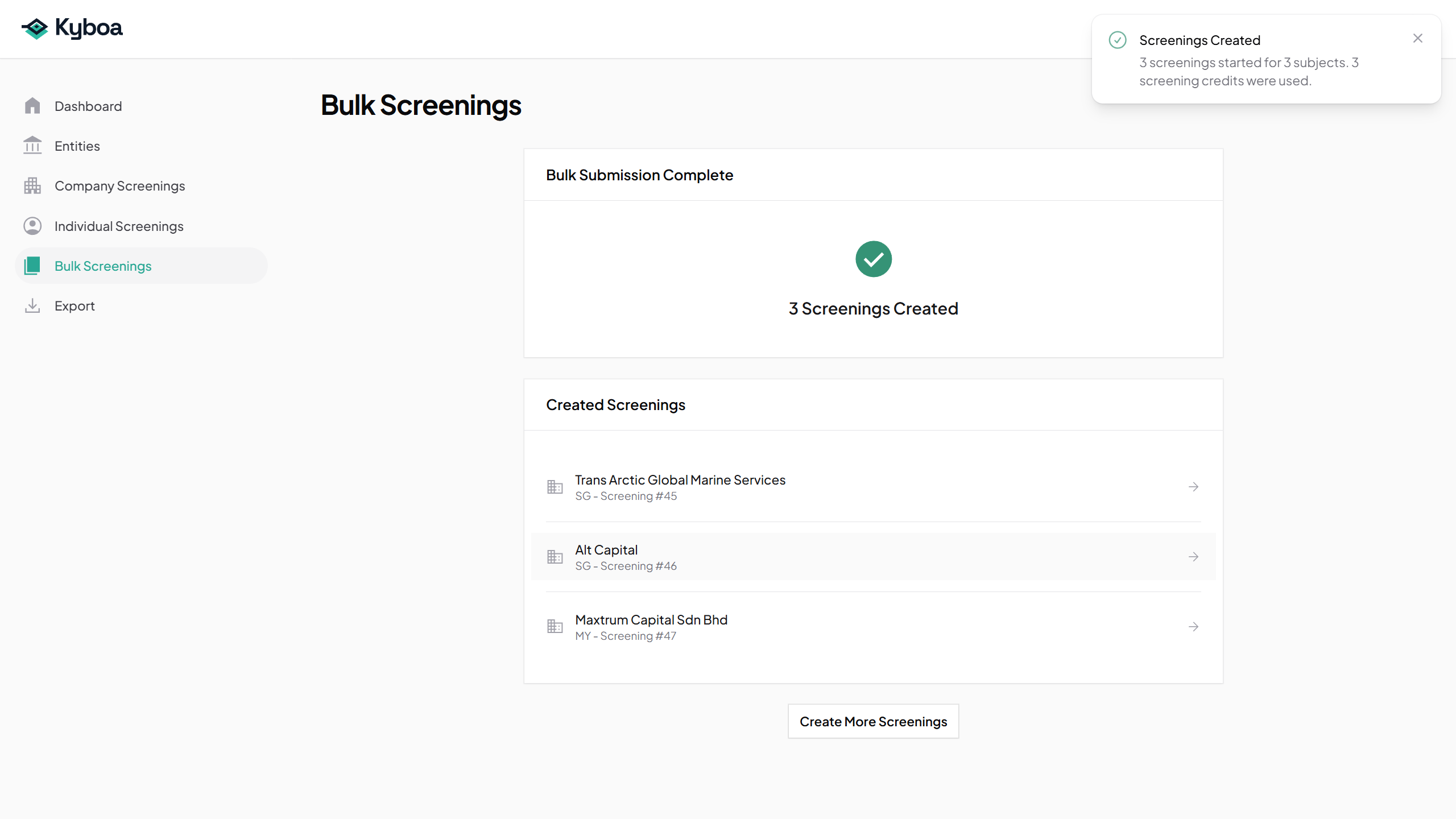
- Choose Create Screenings.
- Check the creation summary and the records created.
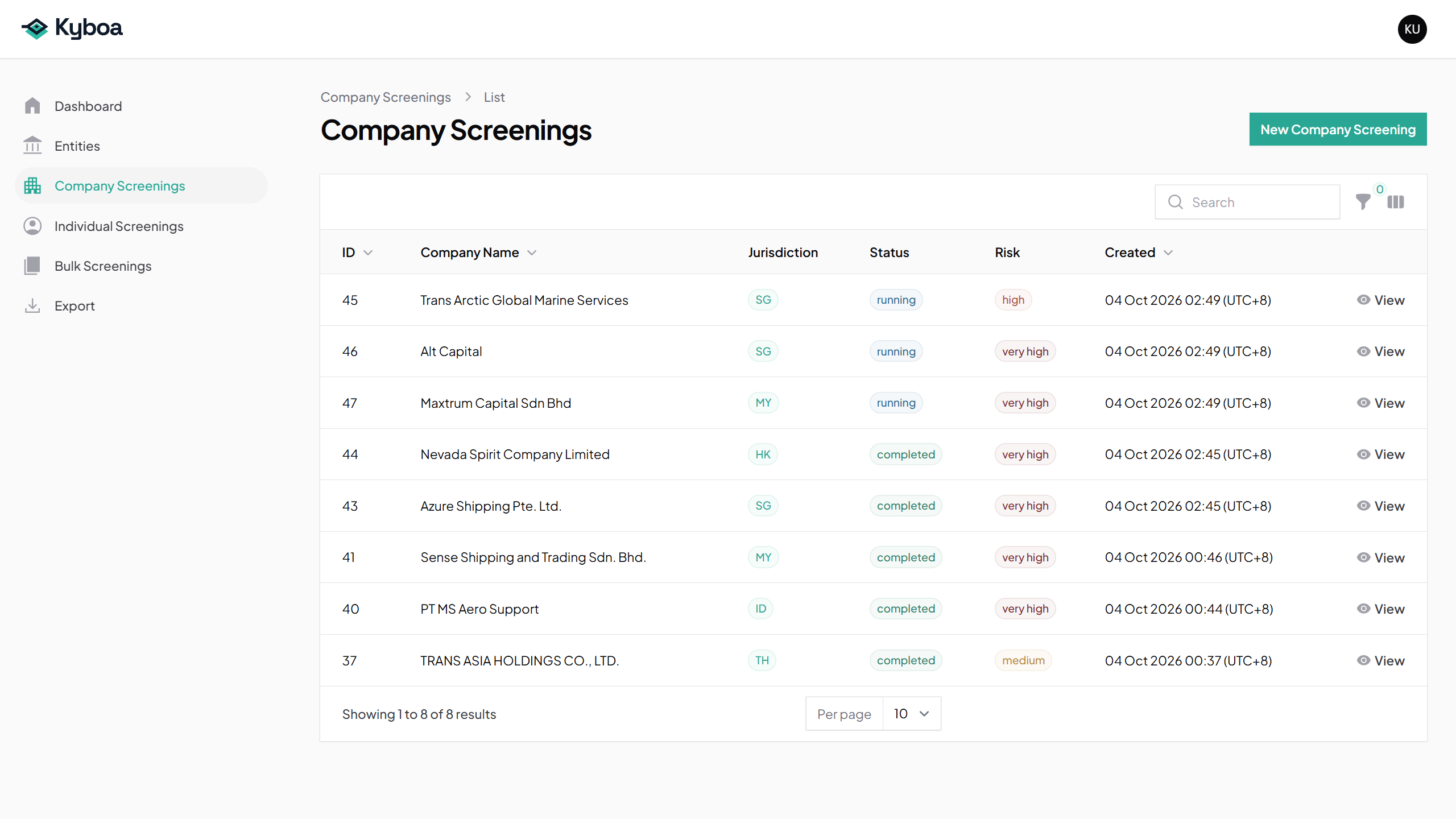
- Open Company Screenings from the sidebar to see the same screenings in the normal list.
If any row is not created, read the result for that row. Check which records exist before retrying so you do not recreate successful rows.
5. Wait for every screening to finish
- Check each of the three names on Company Screenings.
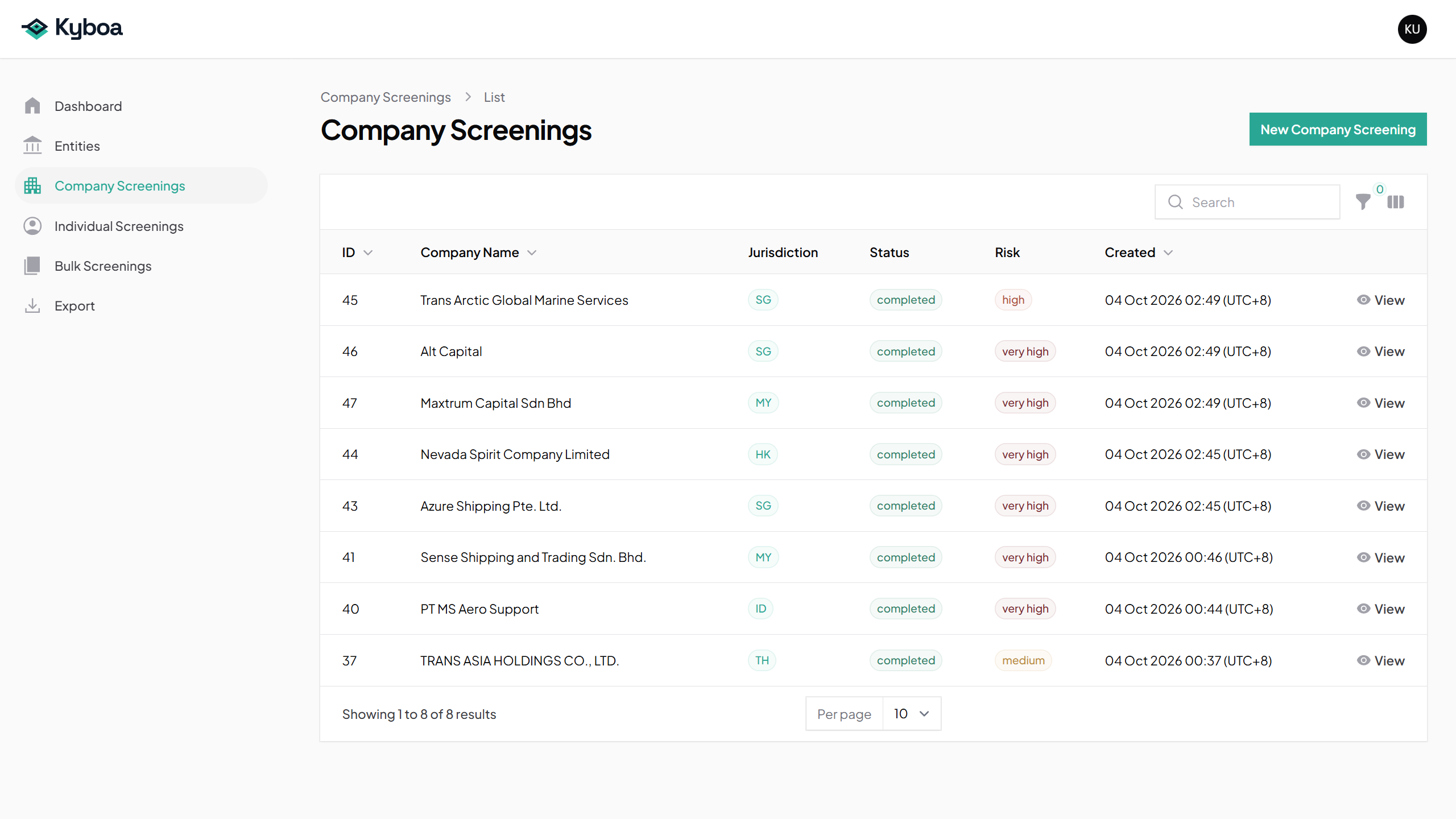
- Wait for all three rows to show completed. Refresh the list when needed.
- You can then choose View on each screening to open its details and report.
The example ends at the completed list. Bulk-created screenings are no different from individually created screenings; report review follows the usual workflow.
6. Common questions
If a row is invalid, check the comma, country code and whether the name is present. Keep each subject on its own line. Put names containing commas in quotes, for example "Smith, John",US.
If processing is waiting, keep the same saved record and check its retry information. Do not submit again just because the report is taking time.
If the screening fails or finishes with unavailable sources, read the error or limitations on the record. Contact support with the screening reference if needed. A report with missing checks requires review of those limitations.
7. Check completion
- All three intended names and country codes were valid.
- The creation summary shows three saved screenings.
- All three records appear in the normal Company Screenings list and are completed.
- You can use View on each record to read its report.